Cloudflare Deploy cloudflared in AWS Guide
Page 3
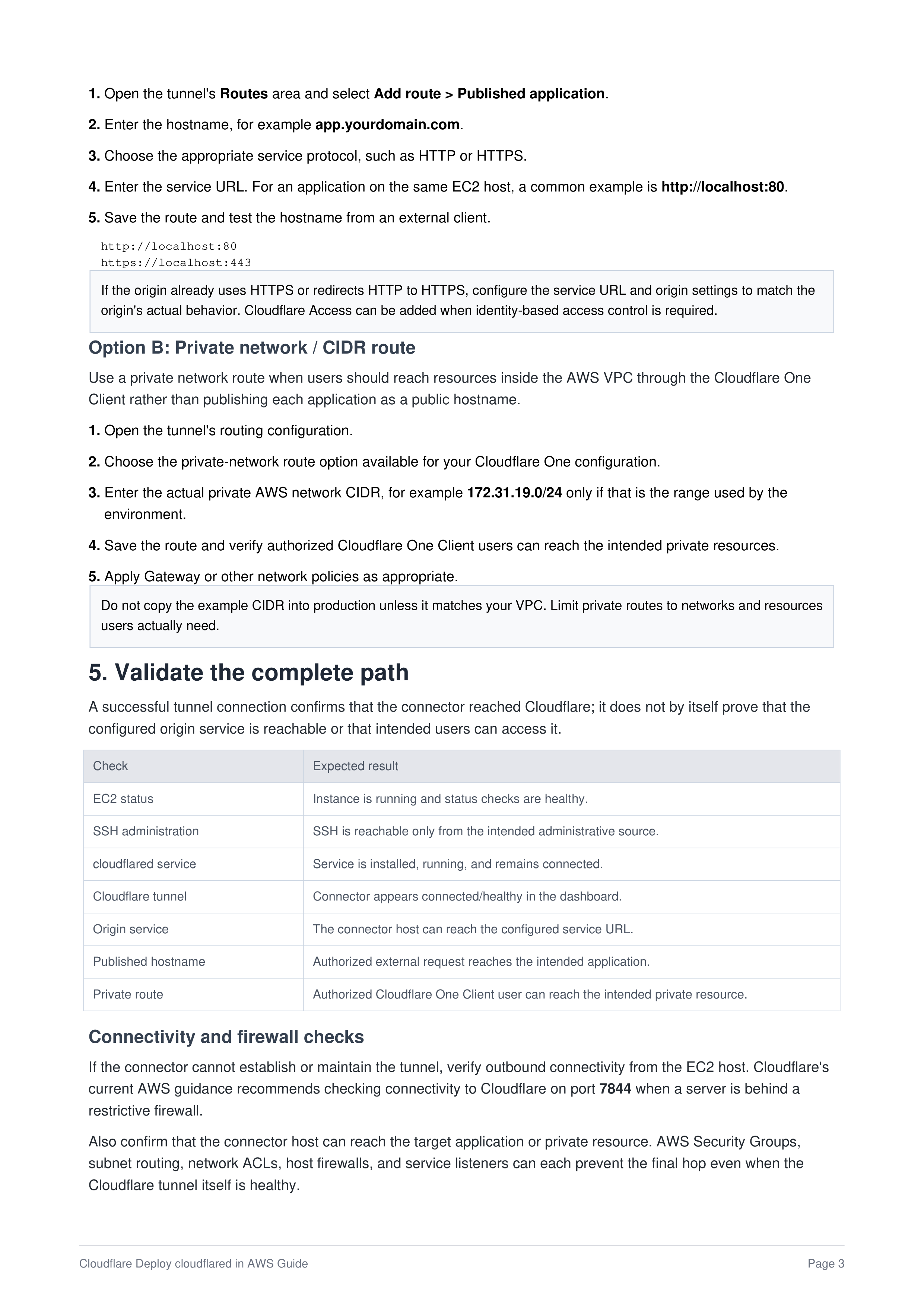
1.
Open the tunnel's
Routes
area and select
Add route > Published application
.
2.
Enter the hostname, for example
app.yourdomain.com
.
3.
Choose the appropriate service protocol, such as HTTP or HTTPS.
4.
Enter the service URL. For an application on the same EC2 host, a common example is
http://localhost:80
.
5.
Save the route and test the hostname from an external client.
http://localhost:80
https://localhost:443
If the origin already uses HTTPS or redirects HTTP to HTTPS, configure the service URL and origin settings to match the
origin's actual behavior. Cloudflare Access can be added when identity-based access control is required.
Option B: Private network / CIDR route
Use a private network route when users should reach resources inside the AWS VPC through the Cloudflare One
Client rather than publishing each application as a public hostname.
1.
Open the tunnel's routing configuration.
2.
Choose the private-network route option available for your Cloudflare One configuration.
3.
Enter the actual private AWS network CIDR, for example
172.31.19.0/24
only if that is the range used by the
environment.
4.
Save the route and verify authorized Cloudflare One Client users can reach the intended private resources.
5.
Apply Gateway or other network policies as appropriate.
Do not copy the example CIDR into production unless it matches your VPC. Limit private routes to networks and resources
users actually need.
5. Validate the complete path
A successful tunnel connection confirms that the connector reached Cloudflare; it does not by itself prove that the
configured origin service is reachable or that intended users can access it.
Check
Expected result
EC2 status
Instance is running and status checks are healthy.
SSH administration
SSH is reachable only from the intended administrative source.
cloudflared service
Service is installed, running, and remains connected.
Cloudflare tunnel
Connector appears connected/healthy in the dashboard.
Origin service
The connector host can reach the configured service URL.
Published hostname
Authorized external request reaches the intended application.
Private route
Authorized Cloudflare One Client user can reach the intended private resource.
Connectivity and firewall checks
If the connector cannot establish or maintain the tunnel, verify outbound connectivity from the EC2 host. Cloudflare's
current AWS guidance recommends checking connectivity to Cloudflare on port
7844
when a server is behind a
restrictive firewall.
Also confirm that the connector host can reach the target application or private resource. AWS Security Groups,
subnet routing, network ACLs, host firewalls, and service listeners can each prevent the final hop even when the
Cloudflare tunnel itself is healthy.