
Free AI Image Generator, Real World Images Examples
Create an AI-generated image in seconds with our Free AI Image Generator.
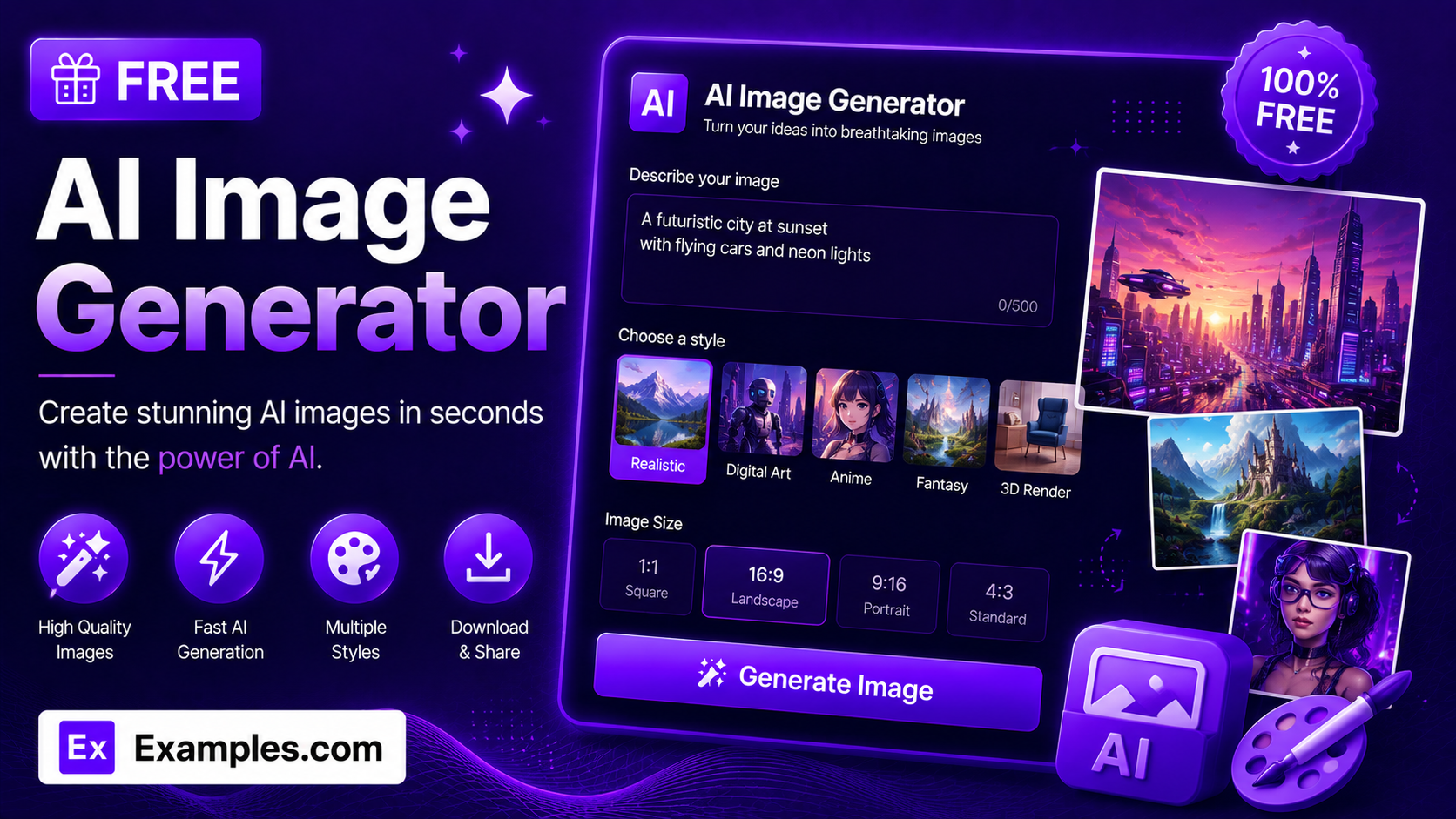
How to use AI Image Generator
Step 1: Upload a Reference Image (Optional)
- If you want the AI to base the image on an existing picture, drag and drop a file into the upload box or click “browse files.” This step is optional — you can also generate an image from text alone. Accepted formats are PNG, JPG, WEBP, and GIF, up to 5MB.
Step 2: Describe the Image You Want
- Type a description of the image in the text box (e.g., “a golden retriever puppy playing in a sunlit meadow, warm afternoon light”). This field is required.
Step 3: Choose a Style
- Select a visual style from the dropdown: Realistic Photo, Digital Illustration, 3D Render, Watercolor Painting, Oil Painting, Cartoon / Anime, Minimalist Flat Design, or Cinematic.
Step 4: Choose an Aspect Ratio
- Select the shape of the finished image: 1:1 (square), 16:9 (landscape), 9:16 (portrait), 4:3 (standard), or 3:4 (portrait standard).
Step 5: Generate the Image
- Press the “Generate Free Image” button. The AI will build an image matching your description, chosen style, and selected aspect ratio.
Step 6: Download Your Image
- Once the image appears, click “Download” and choose PNG, JPG, or WEBP to save it to your device.
How to generate a golden retriever puppy image
Step 1: Upload a Reference Image (Optional)
- For this example, no reference image is uploaded — the image is generated from the text description alone.
Step 2: Describe the Image You Want
- The description is set to “A golden retriever puppy playing in a sunlit meadow, warm afternoon light.”
Step 3: Choose a Style
- The Style is set to Cartoon / Anime.
Step 4: Choose an Aspect Ratio
- The Aspect Ratio is set to 1:1 (square).
Step 5: Generate the Image
- Clicking “Generate Free Image” produces a square, cartoon-style illustration of a golden retriever puppy in a sunlit, grassy meadow.
Step 6: Download Your Image
- Clicking “Download” and selecting PNG saves the finished square puppy illustration to your device.
Suppose you enter “A golden retriever puppy playing in a sunlit meadow, warm afternoon light” with Style set to Cartoon / Anime and Aspect Ratio set to 1:1.
The AI Image Generator reads the description and renders it in the requested style, framing the composition to fit a square canvas.
The result is a self-contained cartoon illustration — a puppy in a grassy field under a bright sun — matching the description without adding unrelated elements.
The image can then be downloaded as a PNG, JPG, or WEBP file.
How the AI Image Generator Works
The AI Image Generator combines three inputs into a single request: your text description, the Style you select, and the Aspect Ratio you select.
The description tells the AI what to depict — the subject, setting, and any details you include.
The Style determines how it’s rendered, from a realistic photo to a watercolor painting or a minimalist flat design.
The Aspect Ratio determines the shape of the canvas, from a square image to a wide landscape or tall portrait frame.
If you upload a reference image, the AI uses it as a visual starting point and adjusts it according to your description instead of generating a scene from scratch.
Examples of AI-Generated Images
- Example 1:
- Description: A golden retriever puppy playing in a sunlit meadow
- Style: Cartoon / Anime
- Aspect Ratio: 1:1 (Square)
- Result: A bright, simplified square illustration of a puppy in a grassy field, suitable for a social media post or profile image.
- Example 2:
- Description: A modern city skyline at sunset with skyscrapers reflecting orange light
- Style: Cinematic
- Aspect Ratio: 16:9 (Landscape)
- Result: A wide, dramatically lit skyline image with strong composition, suitable as a website banner or presentation background.
- Example 3:
- Description: A cup of coffee with latte art on a wooden table, morning light
- Style: Realistic Photo
- Aspect Ratio: 9:16 (Portrait)
- Result: A tall, photo-realistic image framed for mobile screens or a social media story.
- Example 4:
- Description: A cozy reading nook with a bookshelf, armchair, and a cat sleeping in the sun
- Style: Watercolor Painting
- Aspect Ratio: 4:3 (Standard)
- Result: A soft, hand-painted-looking scene with gentle color washes, suitable for a blog header or print.
- Example 5:
- Description: A birthday invitation card design with balloons and confetti, elegant script text area left blank
- Style: 3D Render
- Aspect Ratio: 3:4 (Portrait Standard)
- Result: A polished, card-shaped invitation graphic with realistic lighting and materials, ready to customize with event details.
What is an AI image generator?
An AI image generator is a tool that creates a new image from a written description. You describe what you want to see, choose a visual style and shape for the image, and the AI produces an original picture matching your request.
Do I need to upload a reference image?
No. Uploading a reference image is optional. You can generate an image from your text description alone, or upload a reference image to guide the AI toward a specific look, subject, or composition.
What styles can I choose from?
You can choose from eight styles: Realistic Photo, Digital Illustration, 3D Render, Watercolor Painting, Oil Painting, Cartoon / Anime, Minimalist Flat Design, and Cinematic.
What aspect ratios are available?
Five aspect ratios are available: 1:1 for a square image, 16:9 for a wide landscape image, 9:16 for a tall portrait image, 4:3 for a standard landscape image, and 3:4 for a standard portrait image.
Can I generate an image by speaking instead of typing?
Yes. The description field includes a voice input button. Click it, describe the image out loud, and your words are added to the text box automatically.
Can I download the image in different formats?
Yes. Once your image is generated, you can download it as a PNG, JPG, or WEBP file from the Download menu.
Is the AI Image Generator free to use?
Yes, the AI Image Generator is completely free to use, with no sign-up required to generate an image.
What should I do if the generator gives an error?
Make sure the description field is filled in before generating, and check that any uploaded reference image is under 5MB and in a supported format (PNG, JPG, WEBP, or GIF). If the problem continues, try simplifying your description and generating again.
How detailed should my description be?
More specific descriptions generally produce more accurate results. Including details like setting, lighting, mood, and composition — rather than just a subject name — helps the AI match what you have in mind.
What happens if I upload a reference image?
When a reference image is uploaded, the AI uses it as a starting point and applies your description, style, and aspect ratio to modify or reinterpret it, rather than generating an entirely new scene from text alone.