Meta Horizon OS Quick Start Guide
2
At a glance
Horizon OS is Meta’s operating system for Meta VR devices. It is built on the Android Open Source Project
(AOSP), allowing Android apps to run natively while supporting immersive VR and mixed reality development.
This guide covers platform fundamentals, developer setup, development-path selection, first deployment, testing,
and preparation for publishing.
1. What is Horizon OS?
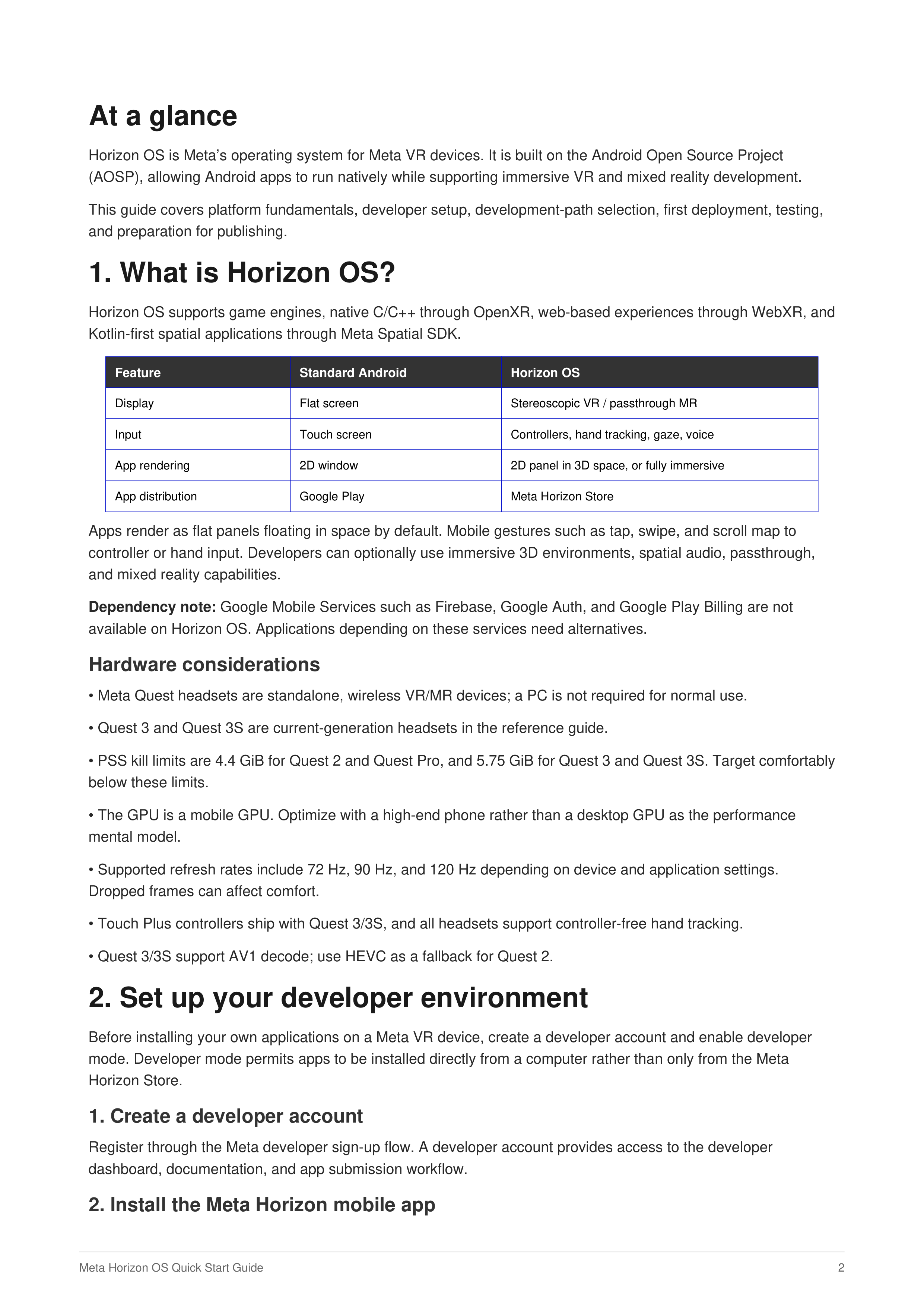
Horizon OS supports game engines, native C/C++ through OpenXR, web-based experiences through WebXR, and
Kotlin-first spatial applications through Meta Spatial SDK.
Feature
Standard Android
Horizon OS
Display
Flat screen
Stereoscopic VR / passthrough MR
Input
Touch screen
Controllers, hand tracking, gaze, voice
App rendering
2D window
2D panel in 3D space, or fully immersive
App distribution
Google Play
Meta Horizon Store
Apps render as flat panels floating in space by default. Mobile gestures such as tap, swipe, and scroll map to
controller or hand input. Developers can optionally use immersive 3D environments, spatial audio, passthrough,
and mixed reality capabilities.
Dependency note:
Google Mobile Services such as Firebase, Google Auth, and Google Play Billing are not
available on Horizon OS. Applications depending on these services need alternatives.
Hardware considerations
• Meta Quest headsets are standalone, wireless VR/MR devices; a PC is not required for normal use.
• Quest 3 and Quest 3S are current-generation headsets in the reference guide.
• PSS kill limits are 4.4 GiB for Quest 2 and Quest Pro, and 5.75 GiB for Quest 3 and Quest 3S. Target comfortably
below these limits.
• The GPU is a mobile GPU. Optimize with a high-end phone rather than a desktop GPU as the performance
mental model.
• Supported refresh rates include 72 Hz, 90 Hz, and 120 Hz depending on device and application settings.
Dropped frames can affect comfort.
• Touch Plus controllers ship with Quest 3/3S, and all headsets support controller-free hand tracking.
• Quest 3/3S support AV1 decode; use HEVC as a fallback for Quest 2.
2. Set up your developer environment
Before installing your own applications on a Meta VR device, create a developer account and enable developer
mode. Developer mode permits apps to be installed directly from a computer rather than only from the Meta
Horizon Store.
1. Create a developer account
Register through the Meta developer sign-up flow. A developer account provides access to the developer
dashboard, documentation, and app submission workflow.
2. Install the Meta Horizon mobile app