
Free AI Onomatopoeia Generator, Real World Onomatopoeia Examples
Generate a custom onomatopoeia word bank instantly with AI. Get vivid sound words with tips for any scene — 100% free, no signup, unlimited use.
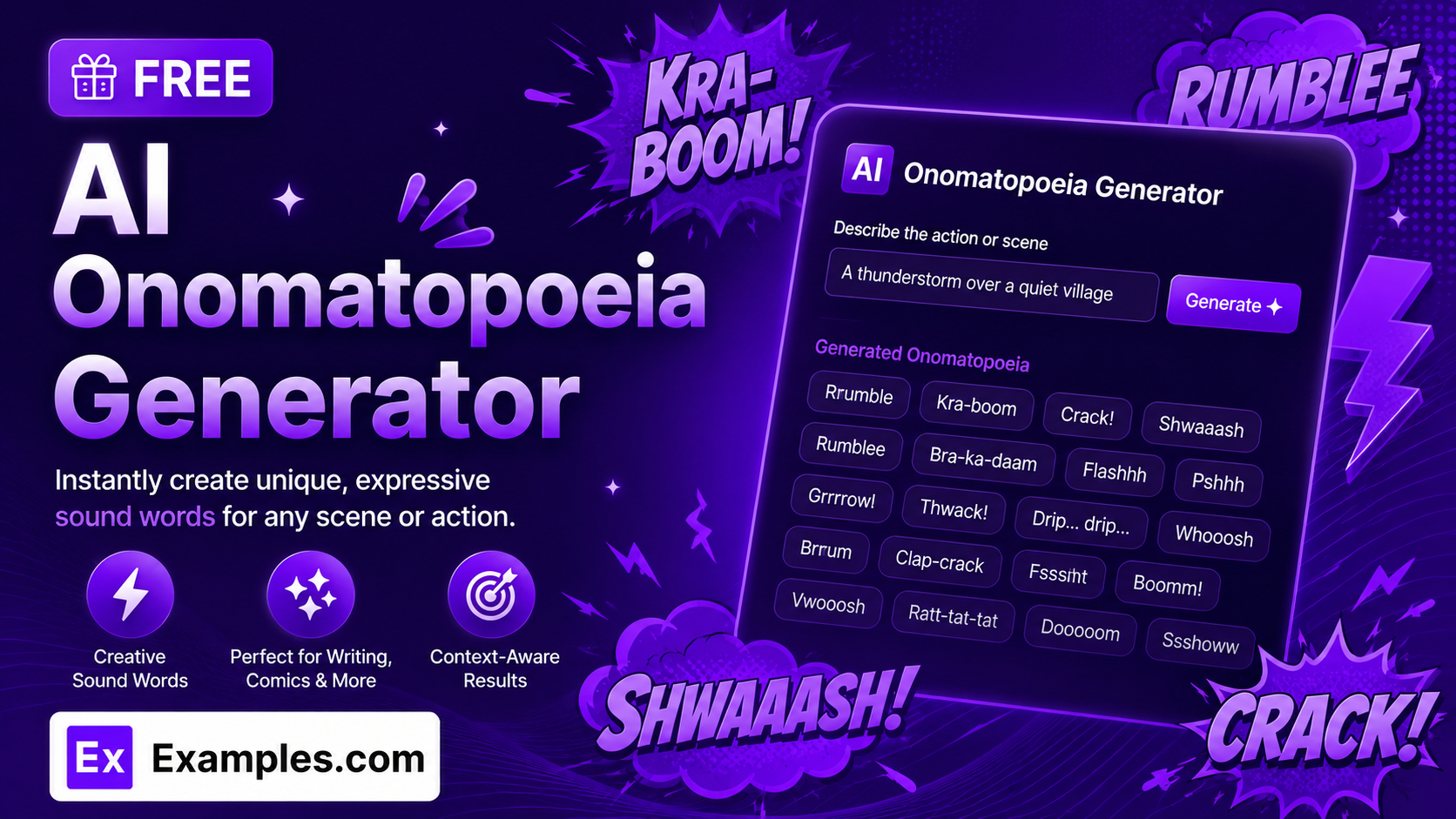
Turn any scene, action, or moment into a ready-to-use bank of sound words with the Examples.com AI Onomatopoeia Generator. Describe what’s happening — a thunderstorm, a busy kitchen, a footstep in an empty hallway — and the AI returns a list of vivid onomatopoeic words, each with a sensory description and a usage tip tied to your exact scene, so you can drop them straight into your writing.
How to Use the AI Onomatopoeia Generator
Step 1: Describe the Scene, Action, or Sound
- Scene, Action, or Sound to Capture: Describe what’s happening, such as “a thunderstorm rolling over a quiet mountain town” or “a busy kitchen during breakfast rush.” The more specific the scene, the more grounded and varied the sound words will be. You can also drag and drop or browse for a file (notes, a script, or a story draft) up to 2MB, and the AI will extract the relevant scene details from it automatically.
Step 2: Choose a Tone
- Tone: Select the mood you want the descriptions to carry — Humorous, Playful, Dramatic, Poetic, Comic-book, Cinematic, Spooky, or Minimalist. Playful is selected by default.
Step 3: Set the List Length
- List Length: Choose Short (around 3 entries), Medium (around 5 entries), or Long (around 7 entries). These are target sizes rather than a hard limit — the AI generates as many distinct sound words as the scene naturally supports. Medium is selected by default.
Step 4: Set the CEFR Level
- CEFR Level: Select the vocabulary complexity for the descriptions and usage tips, from A1 (Beginner) through C2 (Mastery). B1 (Intermediate) is selected by default, which is useful for ESL learners, teachers, and anyone who wants plainer language alongside the sound words themselves.
Step 5: Generate Your Onomatopoeia
- Generate Button: Click the purple “Generate Free Onomatopoeia” button. The AI returns a numbered word bank — each entry is a sound word, a short vivid description of what it sounds like, and a usage tip tied to a specific detail from your scene.
Step 6: Edit, Copy, or Download Your Results
- Edit: Click “Edit” to make changes directly to the word bank before copying or downloading.
- Copy All: Copies the full numbered list to your clipboard as plain text, ready to paste into your writing.
- Download: Save the word bank as a TXT, Word, or PDF file for later use or to share with others.
AI Onomatopoeia Generator Formula
The AI Onomatopoeia Generator follows a structured input-to-output process to produce sound words a writer can actually use:
Onomatopoeia Quality = Sound Accuracy + Scene Grounding + Tone Match + Word Variety
Where:
- Sound Accuracy is how closely each word phonetically matches the real sound it represents, rather than being a plain description dressed up as a sound word
- Scene Grounding is how specifically each usage tip ties back to a concrete object, action, or moment in your described scene, instead of a generic suggestion that could apply anywhere
- Tone Match is how clearly the wording of each description reflects your chosen tone, from Playful to Spooky to Minimalist
- Word Variety is how well the list spreads across different sound sources and word forms — standard words like “hiss” or “clang” balanced with invented reduplicated forms like “tink-tink” or “drip-drop” — rather than repeating the same pattern for every entry
The more specific your scene description, the more grounded and varied the generated word bank will be.
Examples of AI Onomatopoeia Generator
Example 1: A Storm Scene for Fiction
A fiction writer wants sound words to bring a weather scene to life.
- Scene: “A thunderstorm rolling over a quiet mountain town”
- Tone: Playful
- List Length: Medium
- Result: A five-entry word bank such as “rumble – a low, jolly growl that shakes the whole valley; use when the first thunder rolls toward the town from the peaks,” each entry pairing a distinct sound word with a scene-specific usage tip.
Example 2: A Quick List for a Comic Panel
A comic artist needs a short set of punchy sound words for a single action beat.
- Scene: “A skateboarder crashing through a stack of cardboard boxes”
- Tone: Comic-book
- List Length: Short
- Result: A tight three-entry list with punchy, exclamatory descriptions sized for a panel caption rather than a paragraph.
Example 3: An Eerie Scene for Horror Writing
A horror writer wants a longer, unsettling word bank for a tense scene.
- Scene: “Walking alone through an abandoned house at night”
- Tone: Spooky
- List Length: Long
- Result: A seven-entry list favoring eerie, tension-building descriptions, such as a floorboard’s creak or a draft’s low moan, each tied to a specific detail in the house.
Example 4: Extracting a Scene From an Uploaded File
A writer already has a scene drafted and wants sound words pulled directly from it.
- Uploaded File: A short story excerpt (.docx, under 2MB)
- Tone: Cinematic
- Result: The tool extracts the relevant scene details from the file automatically and generates a word bank matched to the action already written, without retyping anything.
Example 5: A Simple List for ESL Learners
A teacher wants easy sound-word examples for beginner English students.
- Scene: “Making breakfast in a kitchen”
- Tone: Minimalist
- CEFR Level: A1 (Beginner)
- Result: A short word bank using only common, everyday vocabulary in the descriptions, such as “sizzle” for the pan or “clink” for cutlery, suitable for early-level classroom use.
What is onomatopoeia?
Onomatopoeia is a word that phonetically imitates, resembles, or suggests the sound it describes, such as “hiss,” “clang,” or “sizzle.” It’s widely used in fiction, poetry, comics, screenwriting, and marketing to make writing feel more vivid and sensory.
What should I enter — an object, an action, or a full scene?
Any of the three works, but a fuller scene tends to produce a more varied word bank. A single object like “a kettle” will mostly return words for that one sound, while a scene like “a kettle boiling over while the dog barks outside” gives the AI several distinct sound sources to draw from.
Does “List Length” give me an exact number of entries?
Not exactly. Short, Medium, and Long are target sizes (around 3, 5, and 7 entries) rather than a strict count. The AI generates as many distinct, well-grounded sound words as the scene naturally supports, so a very simple scene may return slightly fewer entries than the target.
Can I choose the tone of the descriptions?
Yes. The Tone setting shapes the language used in each description and usage tip, from Playful and Humorous to Dramatic, Spooky, Poetic, Comic-book, Cinematic, or Minimalist, so the same scene can read very differently depending on the tone you pick.
What does the CEFR Level setting do?
CEFR Level controls how simple or advanced the vocabulary is in the descriptions and usage tips, from A1 (Beginner) through C2 (Mastery). It’s useful for language learners, teachers building lesson materials, or anyone who wants the explanatory text to match a specific reading level.
Can I upload a file instead of typing my scene?
Yes. You can upload a TXT, PDF, or Word file (up to 2MB) and the tool will automatically extract the relevant scene details from it for you.
Can I edit the generated word bank afterward?
Yes. Click “Edit” to make changes directly to the results, then use “Copy All” to copy the list to your clipboard, or “Download” to save it as a TXT, Word, or PDF file.
Related Tools
- AI Personification Generator — Give inanimate objects human qualities alongside your sound words.
- AI Metaphor Generator — Generate metaphors to pair with your onomatopoeia for richer imagery.
- AI Hyperbole Generator — Add exaggeration for humor or drama alongside your sound words.
- AI Alliteration Generator — Turn a sound word into a full alliterative phrase built around the same sound.
- AI Short Story Generator — Turn your sound-rich scene into a complete short story.
- AI Content Generator — Generate full articles, product descriptions, and more from a single topic.