
Free AI Add Text To Photo, Real World Add Text To Photo Examples
Add text to any photo online for free with AI. Type your caption, pick a style like neon, script, or bold, and get a polished image in seconds.
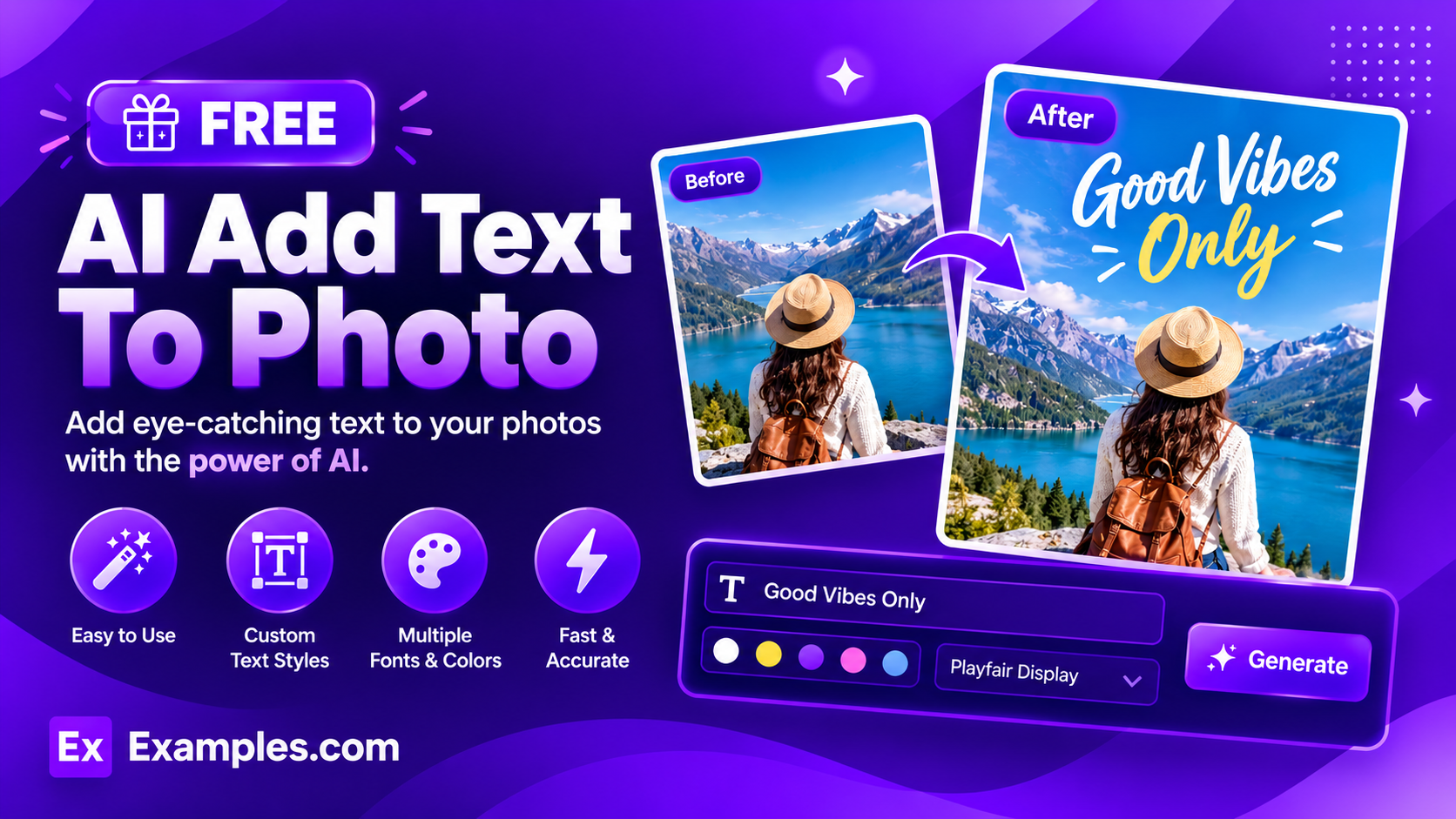
Turn any photo into a designed graphic with the Examples.com AI Add Text to Photo tool. Upload a picture, type the words you want on it, and pick a text style and aspect ratio — the AI blends the text into the photo’s own lighting and perspective instead of pasting a flat caption on top, so it looks intentionally designed rather than stuck on.
How to Use the AI Add Text to Photo Tool
Step 1: Upload Your Photo
- Upload the photo: Drag and drop an image into the upload box, or click to browse files from your device. PNG, JPEG, WEBP, and GIF are supported, up to 5MB. A preview of your photo appears in the box once it’s uploaded, and you can remove it with the “✕” button at any time before generating.
Step 2: Type the Text You Want Added
- Text to add to the photo: Type the exact words you want to appear on the image into the main text box — a caption, a name, a greeting, a quote, anything. You can also add free-form style notes in the same box, like a color, a mood, or where to keep the text away from (“gold color, keep it off her face”), and the AI will follow those instructions along with the wording.
Step 3: Choose a Text Style
- Text Style: Pick how the text should look — Auto, Bold Modern, Elegant Script, Minimalist, Neon Glow, Vintage Stamp, Graffiti, or Handwritten. Auto is selected by default and lets the AI choose a style that best complements the photo’s mood and lighting.
Step 4: Set the Aspect Ratio
- Aspect Ratio: Choose the output shape — 1:1 (Square), 16:9 (Landscape), 9:16 (Portrait), 4:3 (Standard), or 3:4 (Portrait Standard). Square is selected by default. The AI reframes and crops naturally to fit the shape you pick.
Step 5: Generate, Compare, and Download
- Generate Button: Click the purple “✨ Add Text to Photo” button. The AI adds your text to the uploaded photo in the chosen style, blending it into the image’s lighting and perspective while leaving the subject, background, and colors unchanged.
- Before / After Toggle: Use the “Before” and “After” buttons above the result to compare your original photo against the version with text added.
- Download: Use the “Download ▾” menu to save the finished photo as a PNG, JPG, or WEBP file.
AI Add Text to Photo Formula
The AI Add Text to Photo tool follows a structured input-to-output process to produce text overlays that read as intentionally designed rather than pasted on:
Text Placement Quality = Instruction Clarity + Style Match + Photo Blend
Where:
- Instruction Clarity is how precisely the wording, color, and placement notes are described in the text box, since the exact words you type are what get rendered onto the photo
- Style Match is how well the chosen Text Style (or the AI’s Auto choice) suits the photo’s subject and mood, from a bold modern caption to an elegant script or a glowing neon effect
- Photo Blend is the AI adapting the text’s lighting, perspective, and placement to the photo itself, and leaving the subject, background, and colors of the original photo untouched
The more specific your text and style notes, the more precisely the generated result will match what you had in mind.
Examples of AI Add Text to Photo
Example 1: A Birthday Photo
Someone wants to turn a portrait into a shareable birthday graphic.
- Photo: A portrait photo of a person smiling
- Text: “Happy Birthday Sarah!” placed near the bottom of the photo
- Text Style: Elegant Script
- Aspect Ratio: 1:1 (Square)
- Result: The greeting appears in a flowing script near the bottom of the frame, angled and lit to match the photo, ready to share as a square social post.
Example 2: A Product Photo for an Ad
A small business owner wants a bold caption on a product shot for a promotion.
- Photo: A flat-lay photo of a skincare product
- Text: “30% OFF TODAY” in white, positioned in the top corner
- Text Style: Bold Modern
- Aspect Ratio: 4:3 (Standard)
- Result: A high-contrast, sans-serif callout sits in the corner of the frame without covering the product, ready to use as an ad creative.
Example 3: A Street-Style Photo for Social Media
A creator wants an urban, eye-catching caption for a Reels-style post.
- Photo: A photo of a skateboarder mid-trick against a city wall
- Text: “NO DAYS OFF”
- Text Style: Graffiti
- Aspect Ratio: 9:16 (Portrait)
- Result: The text renders in a street-art lettering style that matches the wall and setting, cropped tall for a Reels or Story upload.
Example 4: A Night-Out Photo
Someone wants a glowing, party-ready caption on an evening photo.
- Photo: A photo taken at a party with string lights in the background
- Text: “New Year, New Us”
- Text Style: Neon Glow
- Aspect Ratio: 1:1 (Square)
- Result: The caption appears as a soft neon glow that picks up the ambient light of the string lights already in the photo, feeling like part of the scene rather than a sticker on top.
Example 5: A Travel Photo with a Retro Look
A traveler wants a vintage postcard feel on a landscape shot.
- Photo: A wide landscape photo of a coastal town
- Text: “Greetings from Positano”
- Text Style: Vintage Stamp
- Aspect Ratio: 16:9 (Landscape)
- Result: The text takes on a worn, letterpress-style look that fits the coastal scene, turning the wide photo into a postcard-style graphic.
Is this AI Add Text to Photo tool truly free?
Yes. The AI Add Text to Photo tool is completely free to use, with no hidden charges, sign-up, or subscription required to add text to your photos.
Will the AI change anything else about my photo?
No. The tool is instructed to add only the text you request and to leave the subject, background, colors, and every other part of the photo unchanged. It also won’t add any extra captions, watermarks, or logos beyond the text you typed.
What photo formats and sizes are supported?
You can upload PNG, JPEG, WEBP, or GIF files up to 5MB. The finished result can be downloaded as a PNG, JPG, or WEBP file.
What’s the difference between the Text Style options?
Text Style determines the look and typographic treatment of the text on your photo. Bold Modern is a clean, high-contrast sans-serif for statement captions. Elegant Script uses flowing, calligraphy-style lettering. Minimalist keeps the text thin and understated with generous spacing. Neon Glow renders it as a glowing sign effect. Vintage Stamp gives it a retro, letterpress look. Graffiti uses bold, urban street-art lettering. Handwritten mimics natural marker or pen writing. Auto lets the AI choose whichever style best complements your specific photo.
Which aspect ratio should I choose?
Pick the aspect ratio that matches where you’ll use the image. 1:1 (Square) suits Instagram feed posts, 9:16 (Portrait) suits Stories and Reels, 16:9 (Landscape) suits YouTube thumbnails and banners, and 4:3 or 3:4 suit standard print or presentation formats. The AI reframes and crops your photo naturally to fit whichever shape you select.
Can I compare the before and after, and download the result?
Yes. Once your photo is generated, use the “Before” and “After” toggle above the result to compare the original photo against the version with text added, then use the “Download ▾” menu to save it as a PNG, JPG, or WEBP file.