
Free AI Change Image Color Generator, Real World Changed Image Colors Examples
Change any image's color in seconds with our Free AI Change Image Colour Generator.
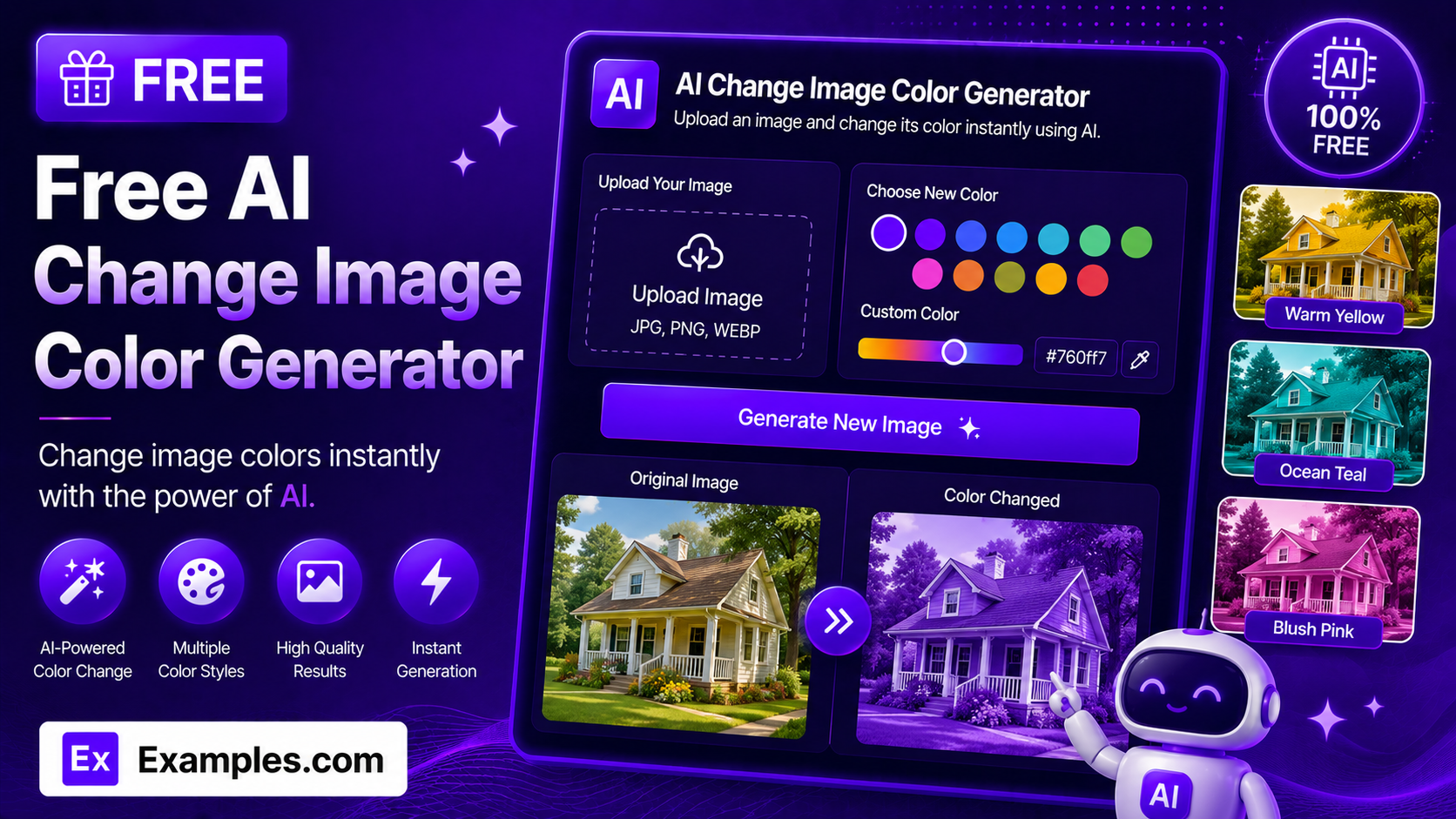
How to use AI Change Image Colour Generator
Step 1: Upload the Image You Want to Recolor
- Drag and drop the image into the upload box or click “browse files.” This step is required — the tool edits an image you provide rather than generating one from scratch. Accepted formats are PNG, JPG, WEBP, and GIF, up to 5MB.
Step 2: Describe the Color Change You Want
- Type what you want changed in the text box (e.g., “change the car from silver to red” or “make the sky pink at sunset”). This field is required.
Step 3: Choose a Change Type
- Select what part of the image the color change applies to: Object, Background, Full Image, Grayscale, Sepia, or Color Pop (isolate one color and mute the rest).
Step 4: Choose an Aspect Ratio
- Select the shape of the finished image: 1:1 (square), 16:9 (landscape), 9:16 (portrait), 4:3 (standard), or 3:4 (portrait standard).
Step 5: Generate the Recolored Image
- Press the “Generate Recolored Image” button. The AI applies the color change you described while keeping the rest of the image the same.
Step 6: Download Your Image
- Once the image appears, click “Download” and choose PNG, JPG, or WEBP to save it to your device.
How to change a car’s color to red
Step 1: Upload the Image You Want to Recolor
- A photo of the car is uploaded into the upload box.
Step 2: Describe the Color Change You Want
- The description is set to “Change the car from silver to red.”
Step 3: Choose a Change Type
- The Change Type is set to Object, since only the car itself should change color.
Step 4: Choose an Aspect Ratio
- The Aspect Ratio is set to 4:3 (Standard).
Step 5: Generate the Recolored Image
- Clicking “Generate Recolored Image” produces the same photo with the car recolored red, while the background, lighting, and composition stay the same.
Step 6: Download Your Image
- Clicking “Download” and selecting PNG saves the finished image to your device.
Suppose you upload a photo of a silver car and enter “Change the car from silver to red” with Change Type set to Object and Aspect Ratio set to 4:3.
The AI Change Image Colour Generator identifies the car in the photo and applies the new color only to it.
The background, lighting, reflections, and every other detail in the photo stay exactly as they were in the original — only the described color change is applied.
The result can then be downloaded as a PNG, JPG, or WEBP file.
How the AI Change Image Colour Generator Works
The AI Change Image Colour Generator edits an image you upload rather than generating a new one from scratch.
Your description tells the AI exactly what color change to make, and the Change Type tells it what part of the image that change applies to — a specific object, the background, the entire image, or a stylized effect like grayscale, sepia, or an isolated color pop.
Everything else in the photo — the composition, subjects, shapes, lighting, and fine details — is instructed to stay the same as the original; only the color is modified.
The Aspect Ratio you select determines the shape of the final output canvas.
Examples of Color Changes
- Example 1:
- Description: Change the car from silver to red
- Change Type: Object
- Aspect Ratio: 4:3 (Standard)
- Result: The same photo with only the car recolored red, background and lighting unchanged.
- Example 2:
- Description: Make the sky a warm orange sunset instead of blue daylight
- Change Type: Background
- Aspect Ratio: 16:9 (Landscape)
- Result: A wide photo with the sky recolored to a sunset tone while the foreground subject stays the same.
- Example 3:
- Description: Turn this portrait into a classic black-and-white photo
- Change Type: Grayscale
- Aspect Ratio: 3:4 (Portrait Standard)
- Result: A tall portrait converted entirely to grayscale tones.
- Example 4:
- Description: Keep the red umbrella in color and mute everything else to black and white
- Change Type: Color Pop (isolate one color)
- Aspect Ratio: 1:1 (Square)
- Result: A square image where only the umbrella keeps its color and the rest of the photo is desaturated.
Do I need to upload an image?
Yes. Unlike a text-to-image generator, this tool edits a photo you provide, so uploading an image is required before you can generate a result.
Will the rest of my image stay the same?
Yes, that’s the goal. The generator is instructed to keep the composition, subjects, shapes, lighting, and fine details unchanged, and to modify only the color as described.
What Change Types are available?
You can choose from six Change Types: Object, Background, Full Image, Grayscale, Sepia, and Color Pop, which isolates one color and mutes the rest of the image.
What image formats can I upload?
You can upload PNG, JPG, WEBP, or GIF files, up to 5MB in size.
Can I generate an image by speaking instead of typing?
Yes. The description field includes a voice input button. Click it, describe the color change out loud, and your words are added to the text box automatically.
Can I download the image in different formats?
Yes. Once your image is generated, you can download it as a PNG, JPG, or WEBP file from the Download menu.
Is the AI Change Image Colour Generator free to use?
Yes, the AI Change Image Colour Generator is completely free to use, with no sign-up required.
What should I do if the generator gives an error?
Make sure you’ve uploaded an image and filled in the description field before generating, and check that the image is under 5MB and in a supported format (PNG, JPG, WEBP, or GIF). If the problem continues, try simplifying your description and generating again.