
Free AI Background Remover, Real World Background Remover Examples
Instantly remove the background from any image using AI. Fast, free, and easy — upload your photo and get a clean cutout in seconds.
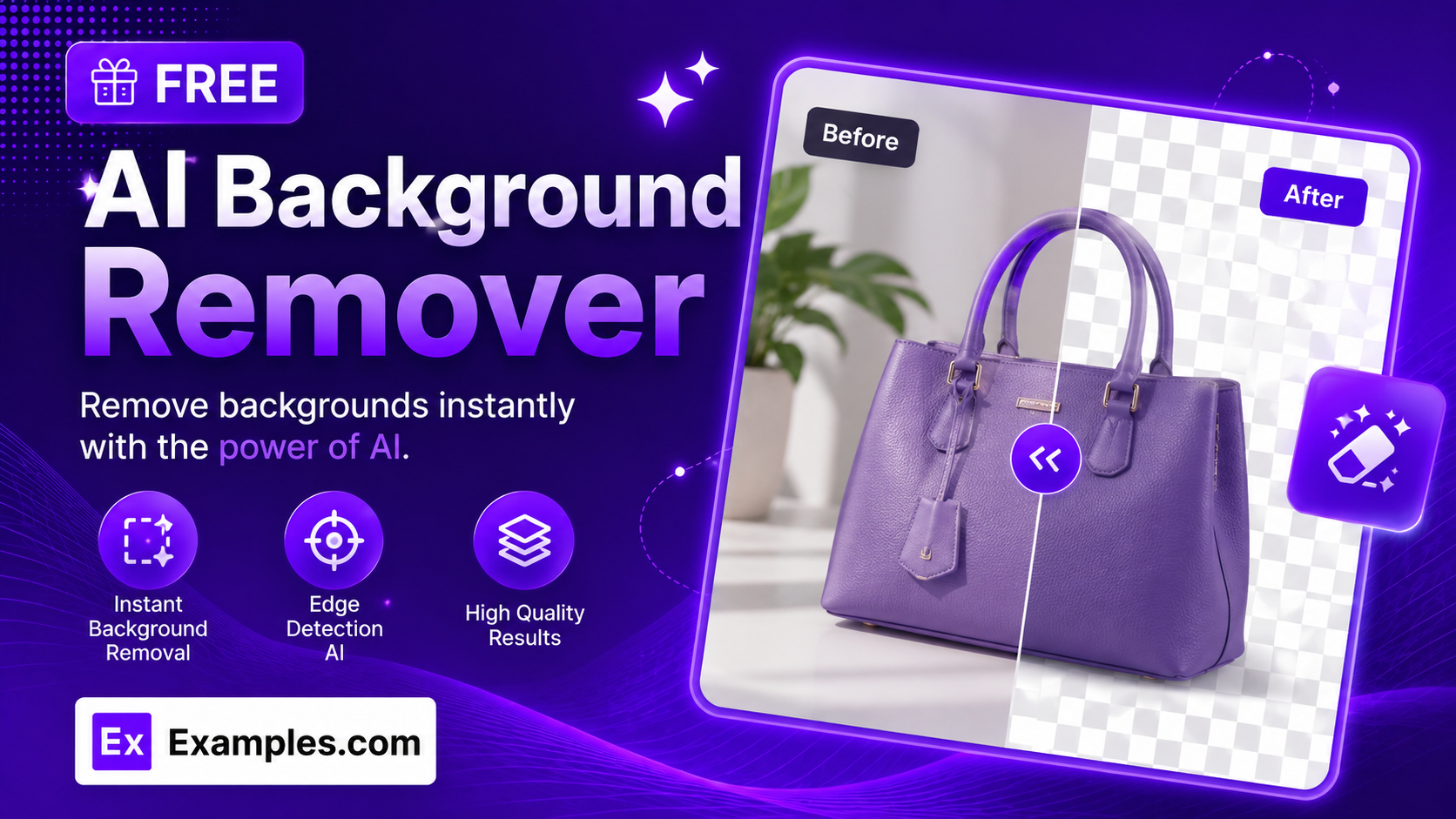
Get a clean, professional white background on any photo with the Examples.com AI Background Remover. Upload an image, add optional instructions if you want a soft shadow or a specific look, and the AI cuts out the subject and places it on a flat, evenly-lit white background — ready to compare before and after, and download as a PNG, JPG, or WEBP.
How to Use the AI Background Remover
Step 1: Upload Your Image
- Upload the Image You Want to Edit: Drag and drop a photo into the upload box, or click to browse your files. Supported formats are PNG, JPG, WEBP, and GIF, up to 5MB. The tool automatically reads the photo’s exact dimensions so the result comes back matching your original image size.
Step 2: Add Optional Instructions
- Additional Instructions: Optionally type a short note in the instructions field — for example, asking to keep a soft drop shadow beneath the subject. Leave this blank for a clean, standard white-background cutout with no extra styling.
Step 3: Generate, Compare, and Download
- Remove Background Button: Click the purple “Remove Background” button. The AI identifies the subject, removes the existing background entirely, and replaces it with a flat, evenly-lit white background — keeping the subject’s pose, shape, and fine details unchanged.
- Before / After Toggle: Use the “Before” and “After” buttons above the result to compare your original photo against the background-removed version.
- Download: Use the “Download” menu to save your result as a PNG, JPG, or WEBP file.
AI Background Remover Formula
The AI Background Remover follows a structured process to produce a clean, usable cutout every time:
Cutout Quality = Subject Detection + Edge Precision + Background Consistency
Where:
- Subject Detection is how accurately the AI identifies the main subject of your photo and separates it from everything behind it, without altering the subject’s pose, shape, or lighting
- Edge Precision is how cleanly the cutout follows the subject’s outline, especially around fine details like hair, so there’s no leftover fringe, halo, or tint from the original background
- Background Consistency is the replacement background coming out as a flat, evenly-lit, pure white fill every time, with no gradient, texture, or off-white tint
A clearer, well-lit original photo with good separation between the subject and its background produces the cleanest result.
Examples of AI Background Remover
Example 1: A LinkedIn Headshot
A professional wants a clean profile photo without re-shooting it in a studio.
- Input: A phone photo taken against a cluttered home background
- Additional Instructions: None
- Result: The same headshot with the cluttered background completely removed and replaced with a flat white background, ready to upload to LinkedIn.
Example 2: An Ecommerce Product Photo
A seller wants a product listing photo that matches marketplace requirements.
- Input: A photo of a product shot on a kitchen counter
- Additional Instructions: Keep a soft drop shadow beneath the product
- Result: The product isolated on a pure white background with a subtle shadow underneath, matching typical marketplace listing standards.
Example 3: A Pet Photo for Printing
A pet owner wants to print a photo of their dog without a distracting background.
- Input: A photo of a dog taken outdoors in a park
- Additional Instructions: None
- Result: The dog cut out cleanly, including fine details around the fur, and placed on a flat white background suitable for printing or framing.
Is this AI Background Remover truly free?
Yes. The AI Background Remover is completely free to use, with no hidden charges, sign-up, or subscription required.
What background color does the tool produce?
The tool always replaces the existing background with a flat, evenly-lit pure white background. This keeps every result consistent and ready to use for headshots, product photos, and other everyday background-removal needs.
What image formats and file sizes are supported?
You can upload PNG, JPG, WEBP, or GIF files up to 5MB. The result can be downloaded as a PNG, JPG, or WEBP file.
Will the output match my original photo’s size?
The tool reads your uploaded photo’s exact dimensions and requests a matching output size, so the subject’s position and scale stay consistent with the original. As with any AI-generated image, always check the output before relying on it for print or other size-critical use.
Can I compare the before and after versions?
Yes. Once your image is processed, use the “Before” and “After” toggle above the result to switch between your original photo and the background-removed version.