
Free AI Image Upscaler, Real World Upscaling Examples
Upscale any image's resolution in seconds with our Free AI Image Upscaler.
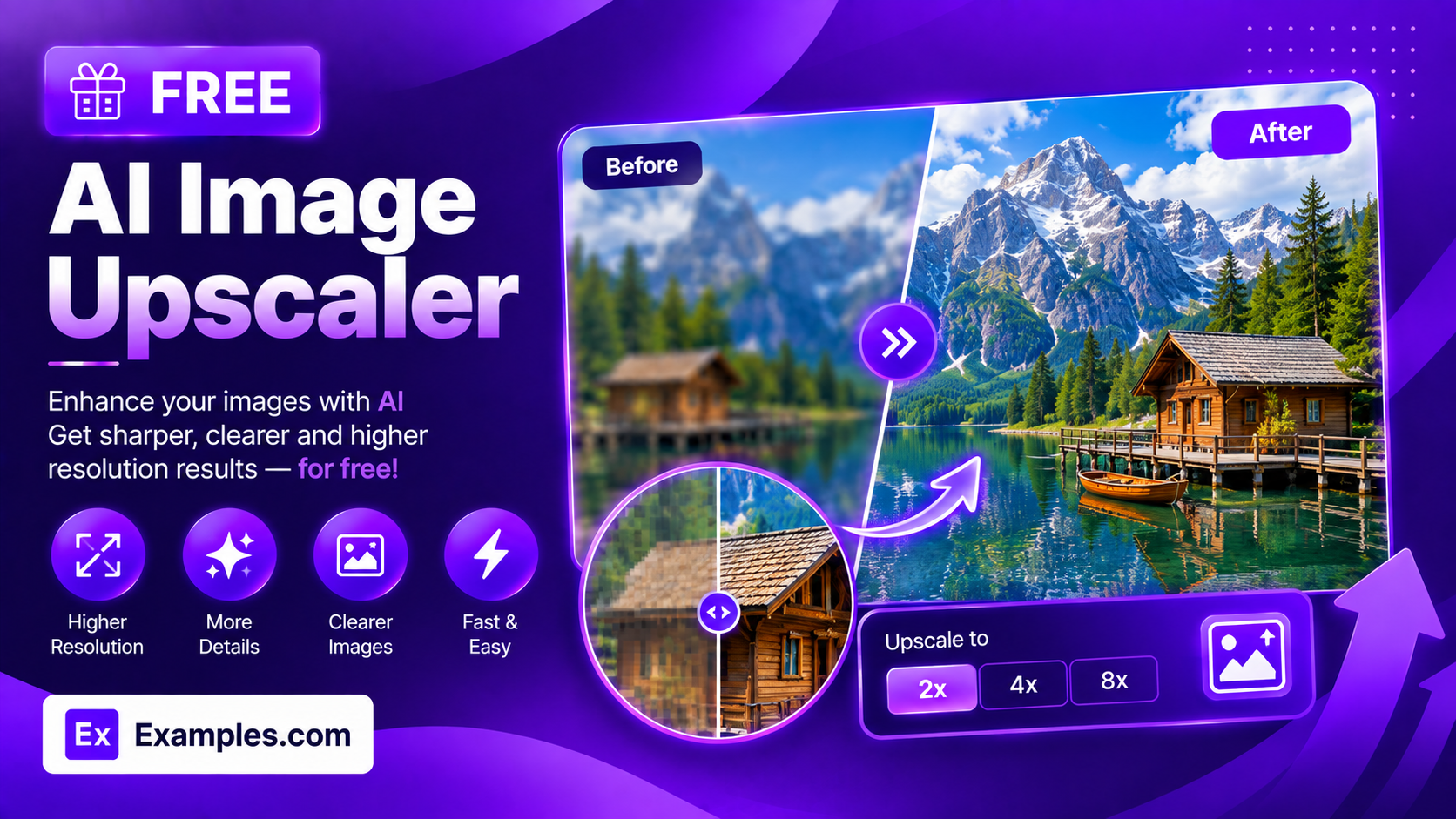
How to use AI Image Upscaler
Step 1: Upload the Image You Want to Upscale
- Drag and drop the image into the upload box or click “browse files.” This step is required — the tool upscales an image you provide rather than generating one from scratch. Accepted formats are PNG, JPG, WEBP, and GIF, up to 5MB.
Step 2: Describe What to Enhance (Optional)
- If you want to point out a specific area, type it in the text box (e.g., “sharpen the face and remove noise” or “bring out more detail in the petals”). This field is optional — every Enhancement Type works without any description.
Step 3: Choose an Upscale Factor
- Select how much larger the output should be: 2x, 4x, or 8x the original resolution.
Step 4: Choose an Enhancement Type
- Select what the upscale should focus on: Standard, Face, Denoise, Detail, or Art.
Step 5: Upscale the Image
- Press the “Upscale Image” button. The AI increases the resolution while keeping the original composition, aspect ratio, and content exactly the same.
Step 6: Download Your Upscaled Image
- Once the upscaled image appears, click “Download” and choose PNG, JPG, or WEBP to save it to your device.
How to upscale a low-resolution image 4x
Step 1: Upload the Image You Want to Upscale
- A soft, low-detail photo of a flower is uploaded into the upload box.
Step 2: Describe What to Enhance (Optional)
- The description is set to “Bring out more detail in the petals.”
Step 3: Choose an Upscale Factor
- The Upscale Factor is set to 4x.
Step 4: Choose an Enhancement Type
- The Enhancement Type is set to Standard.
Step 5: Upscale the Image
- Clicking “Upscale Image” produces a sharper, more detailed version of the same flower at four times the resolution, with clearer petal edges and texture.
Step 6: Download Your Upscaled Image
- Clicking “Download” and selecting PNG saves the finished, upscaled image to your device.
Suppose you upload a soft, low-detail photo of a flower and enter “Bring out more detail in the petals,” with Upscale Factor set to 4x and Enhancement Type set to Standard.
The AI Image Upscaler increases the image’s resolution to roughly four times its original size while reconstructing sharper edges and finer texture.
The subject, colors, and composition stay exactly the same as the original — only the resolution and clarity improve.
The result can then be downloaded as a PNG, JPG, or WEBP file.
How the AI Image Upscaler Works
The AI Image Upscaler edits an image you upload rather than generating a new one from scratch.
Unlike some of our other editing tools, it does not offer an aspect ratio choice — the output always keeps the exact aspect ratio of the image you uploaded, since changing it during an upscale would distort or crop the original photo.
The tool reads your uploaded image’s actual dimensions and multiplies them by your chosen Upscale Factor (2x, 4x, or 8x) to determine the output size, capped at a maximum resolution to keep results practical.
The Enhancement Type tells the AI what to prioritize while increasing resolution — general clarity, sharper faces, reduced noise, finer texture, or clean lines for artwork.
The optional description field lets you point the AI toward a specific area or kind of detail to focus on.
Benefits of the AI Image Upscaler
- Up to 8x resolution increase: choose 2x, 4x, or 8x scaling depending on how much detail you need.
- Five enhancement modes: optimize for general clarity, faces, noise reduction, fine texture, or clean illustration lines.
- Aspect ratio always preserved: the output matches your original image’s proportions exactly, with no cropping or stretching.
- No design skills needed: get a higher-resolution image with one click, without photo editing software.
- Multiple download formats: save your result as a PNG, JPG, or WEBP file.
- Free and browser-based: use the tool from any device with a browser, with no sign-up required.
Common Use Cases for Upscaling an Image
1. Prepare a low-resolution photo for printing
Old or web-sized photos often lack the resolution needed for prints. Upscaling can increase the pixel count so a photo looks sharper at a larger physical size.
2. Enhance a blurry or compressed image
Images saved from messaging apps or older cameras are often heavily compressed. The Denoise enhancement type can reduce artifacts while increasing resolution.
3. Improve a profile photo or headshot
Use the Face enhancement type to sharpen facial detail specifically, useful for turning a small or soft photo into a clearer profile picture.
4. Scale up digital artwork or illustrations
The Art / Illustration enhancement type increases resolution while preserving clean lines and flat colors, avoiding the photographic texture a standard upscale might introduce.
5. Recover detail in an old scanned photo
The Detail enhancement type reconstructs fine texture that was lost to low original resolution or scanning quality.
Tips for the Best Upscaling Results
- Start with 2x or 4x for most photos — 8x is best reserved for very small originals that need a large size increase.
- Choose the Enhancement Type that matches your image: Face for portraits, Art for illustrations, Denoise for compressed or grainy photos.
- Use the description field to point out a specific area, like a face or a textured surface, if you want the AI to prioritize it.
- Remember the aspect ratio always matches your original upload, so crop or frame your source image the way you want the final result to look.
- Download as PNG if you plan to edit the image further, since it avoids the additional compression of JPG.
Examples of Image Upscaling
- Example 1:
- Upscale Factor: 4x
- Enhancement Type: Standard
- Description: Bring out more detail in the petals
- Result: A sharper, more detailed version of the original image at four times the resolution.
- Example 2:
- Upscale Factor: 2x
- Enhancement Type: Face
- Description: None
- Result: A profile photo with sharper facial detail at double the original resolution.
- Example 3:
- Upscale Factor: 8x
- Enhancement Type: Denoise
- Description: None
- Result: A small, grainy image scaled up to eight times its size with noise reduced and edges sharpened.
- Example 4:
- Upscale Factor: 4x
- Enhancement Type: Art
- Description: None
- Result: A digital illustration scaled up with clean lines and flat colors preserved.
Do I need to upload an image?
Yes. This tool upscales an image you provide, so uploading a file is required before you can generate a result.
Can I choose an aspect ratio for the output?
No. The output always keeps the exact aspect ratio of the image you upload. This is intentional — letting the aspect ratio change during an upscale would crop or distort the original image instead of simply increasing its resolution.
Do I need to type a description?
No. The description field is optional. Every Enhancement Type works without any text — the description is most useful when you want to highlight a specific area or detail.
What upscale factors are available?
You can choose 2x, 4x, or 8x. The output resolution is calculated directly from your uploaded image’s original dimensions, up to a maximum output size.
What Enhancement Types can I choose from?
You can choose from five types: Standard, Face, Denoise, Detail, and Art / Illustration Upscale.
Can I describe what to enhance by speaking instead of typing?
Yes. The description field includes a voice input button. Click it, describe what you want enhanced out loud, and your words are added to the text box automatically.
Can I download the image in different formats?
Yes. Once your image is upscaled, you can download it as a PNG, JPG, or WEBP file from the Download menu.
Is the AI Image Upscaler free to use?
Yes, the AI Image Upscaler is completely free to use, with no sign-up required.
What should I do if the generator gives an error?
Make sure you’ve uploaded an image before generating, and check that it’s under 5MB and in a supported format (PNG, JPG, WEBP, or GIF). If the problem continues, try a lower Upscale Factor or a different Enhancement Type and generate again.