
Free AI Photo to Sketch, Real World AI Photo to Sketch Examples
Turn any photo into a hand-drawn sketch free with AI. Choose from pencil, charcoal, ink, manga & more styles. No signup, fast results, download instantly.
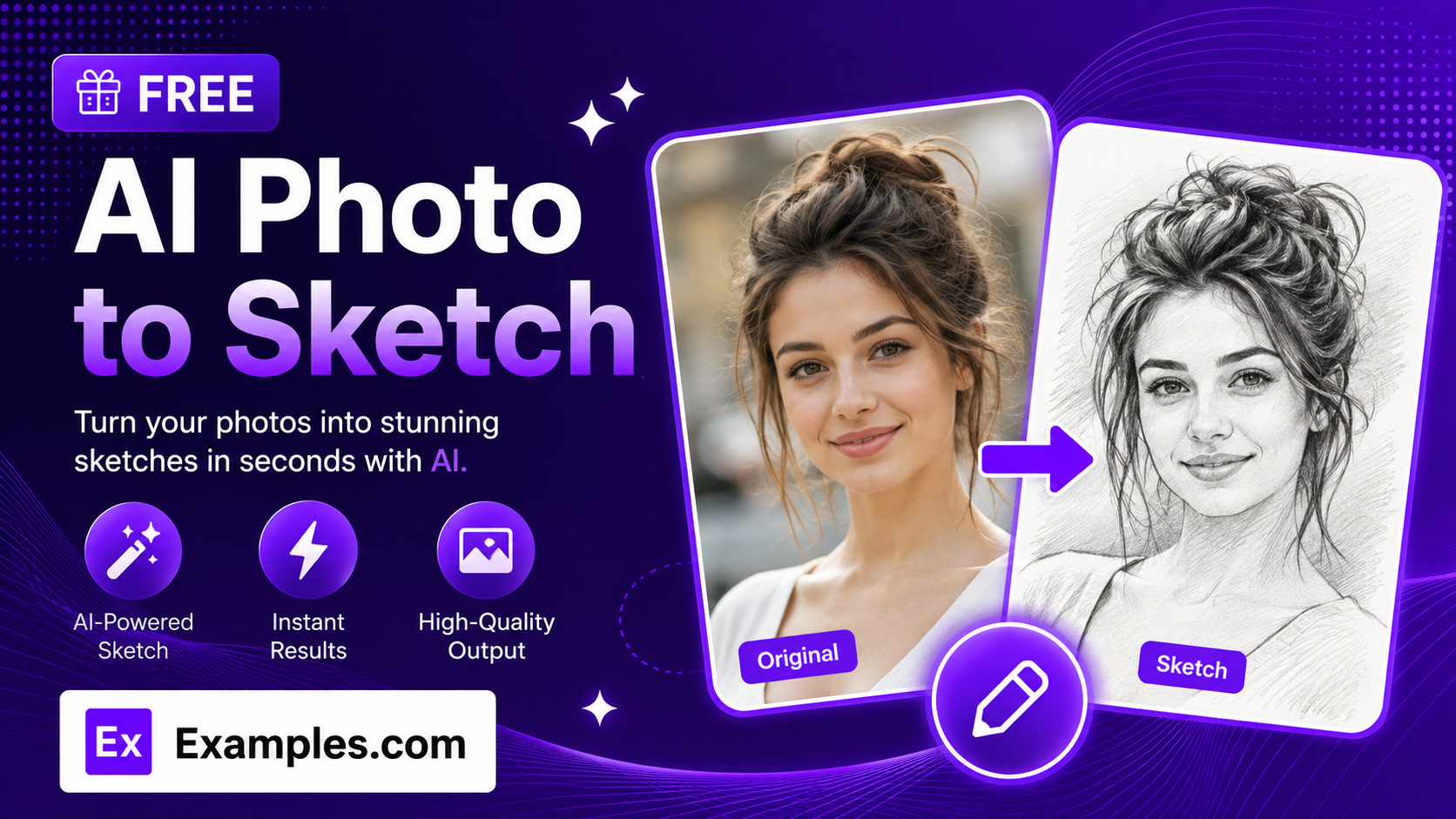
Turn any photo into hand-drawn art with the Examples.com AI Photo to Sketch tool. Upload a photo, pick from 17 sketch styles — from realistic pencil and charcoal to manga and graffiti — and get a fully sketched version of your image, background included, ready to download in seconds.
How to Use the AI Photo to Sketch Tool
Step 1: Upload Your Photo
- Upload your photo: Drag and drop an image into the upload area or click to browse files. PNG, JPG, WEBP, and GIF files up to 5MB are supported. A clear, well-lit photo with the subject in focus gives the most accurate sketch.
Step 2: Choose a Sketch Style
- Sketch Style: Pick from 17 styles — Pencil, Charcoal, Ink, Colored Pencil, Watercolor, Ballpoint Pen, Pastel, Fine Detail, Da Vinci Manuscript, Bold, Minimalist Line, Figure Quick Sketch, Cartoon, Concept, Manga, Aesthetic, Graffiti, and Ink Wash. Pencil Sketch is selected by default.
Step 3: Choose an Aspect Ratio
- Aspect Ratio: Select 1:1, 16:9, 9:16, 4:3, or 3:4 to fit the output to a profile photo, wallpaper, social post, or print. If the chosen ratio differs from the original photo, the background is extended naturally rather than stretching the subject.
Step 4: Add Additional Instructions (Optional)
- Additional Instructions: Type or dictate extra direction using the microphone icon — for example, “use warm sepia tones,” “keep the background simple,” or “add heavier shading around the eyes.” These instructions take priority over the default style rendering.
Step 5: Generate and Download Your Sketch
- Generate Button: Click the purple “Generate Free Sketch” button. The AI redraws the entire photo — subject and background — into consistent sketch artwork in your chosen style, while keeping the pose, features, and likeness recognizable.
- Download: Use the “Download” menu to save the finished sketch as a PNG, JPG, or WEBP file.
AI Photo to Sketch Formula
The AI Photo to Sketch tool follows a structured process to turn a photo into a convincing hand-drawn sketch:
Sketch Quality = Photo Clarity + Style Fidelity + Identity Preservation
Where:
- Photo Clarity is how well-lit and in-focus the uploaded photo is, since sharper source images translate into cleaner linework and shading
- Style Fidelity is how closely the output matches the texture, shading, and linework conventions of the chosen sketch style, applied consistently across both the subject and the background
- Identity Preservation is how well the sketch retains the subject’s pose, proportions, facial features, and overall likeness so the result still clearly resembles the original photo
The clearer the source photo, the more detailed and recognizable the generated sketch will be.
Examples of AI Photo to Sketch
Example 1: A Portrait in Pencil Sketch
Someone wants a classic, realistic sketch of a headshot for a personal keepsake.
- Input: A close-up portrait photo
- Sketch Style: Pencil Sketch
- Aspect Ratio: 1:1
- Result: A soft graphite-style pencil drawing with visible strokes and fine shading, keeping the person’s features and expression clearly recognizable.
Example 2: A Pet Photo in Charcoal
A pet owner wants a bold, dramatic drawing of their dog for a print.
- Input: A photo of a dog sitting outdoors
- Sketch Style: Charcoal Sketch
- Aspect Ratio: 4:3
- Result: A high-contrast charcoal drawing with smudged shadows and dramatic tonal depth, with the background reframed naturally to fit the wider ratio.
Example 3: A Profile Photo in Manga Style
Someone wants a stylized, anime-inspired version of their profile photo for social media.
- Input: A casual selfie
- Sketch Style: Manga Sketch
- Aspect Ratio: 9:16
- Result: A manga-style illustration with bold clean outlines and stylized expressive eyes, resized to a tall format ready for a Story post.
Example 4: A Couple’s Photo with Custom Instructions
A couple wants a romantic, sepia-toned sketch of a photo together, with the background kept simple.
- Input: A photo of two people together
- Sketch Style: Da Vinci Manuscript
- Additional Instructions: “Keep the background simple, use warm sepia tones”
- Result: A Renaissance-style sepia sketch with fine cross-hatched shading and a simplified backdrop, following the custom instructions exactly.
Example 5: A Landscape in Watercolor Sketch
A traveler wants an artistic, painterly version of a scenic photo.
- Input: A landscape photo taken on a trip
- Sketch Style: Watercolor Sketch
- Aspect Ratio: 16:9
- Result: A soft watercolor rendering with gentle washes of color and light pencil linework beneath, composed in a wide landscape format.
Is this AI Photo to Sketch tool truly free?
Yes. The AI Photo to Sketch tool is completely free to use, with no hidden charges, sign-up, or subscription required to convert your photo into a sketch.
Will the sketch still look like the person in my photo?
Yes. The tool is instructed to preserve the subject’s pose, proportions, facial features, and overall likeness, so the sketch still clearly resembles the original photo even though it’s redrawn in a new artistic style.
Does the background get sketched too, or just the subject?
The entire photo is converted, including the background, so you get consistent sketch artwork throughout rather than a photo with just the subject drawn on top. If you’d like the background simplified or changed, mention that in the additional instructions field.
What’s the difference between the sketch styles?
Each style changes the medium and mood of the drawing. Pencil, Charcoal, Ink, and Ballpoint Pen mimic traditional hand-drawn media with varying levels of contrast and detail. Colored Pencil, Watercolor, and Pastel add soft color and texture. Fine Detail and Da Vinci Manuscript focus on intricate, classical linework. Bold, Minimalist Line, and Figure Quick Sketch emphasize simplified, expressive strokes. Cartoon, Concept, Manga, Aesthetic, Graffiti, and Ink Wash lean into more stylized, illustrative looks.
Can I change the aspect ratio of my photo?
Yes. Choose from 1:1, 16:9, 9:16, 4:3, or 3:4 before generating. If the new ratio doesn’t match your original photo’s proportions, the tool extends the background naturally to fill the frame instead of stretching or cropping the subject.
What file formats can I download my sketch in?
Once your sketch is generated, use the “Download” menu to save it as a PNG, JPG, or WEBP file.