
Free AI Art Generator, Real World Art Examples
Generate stunning AI art for free. Choose from Fantasy, Anime, Realism, Pixel Art & more styles. Upload a reference image, pick your aspect ratio, and create instantly.
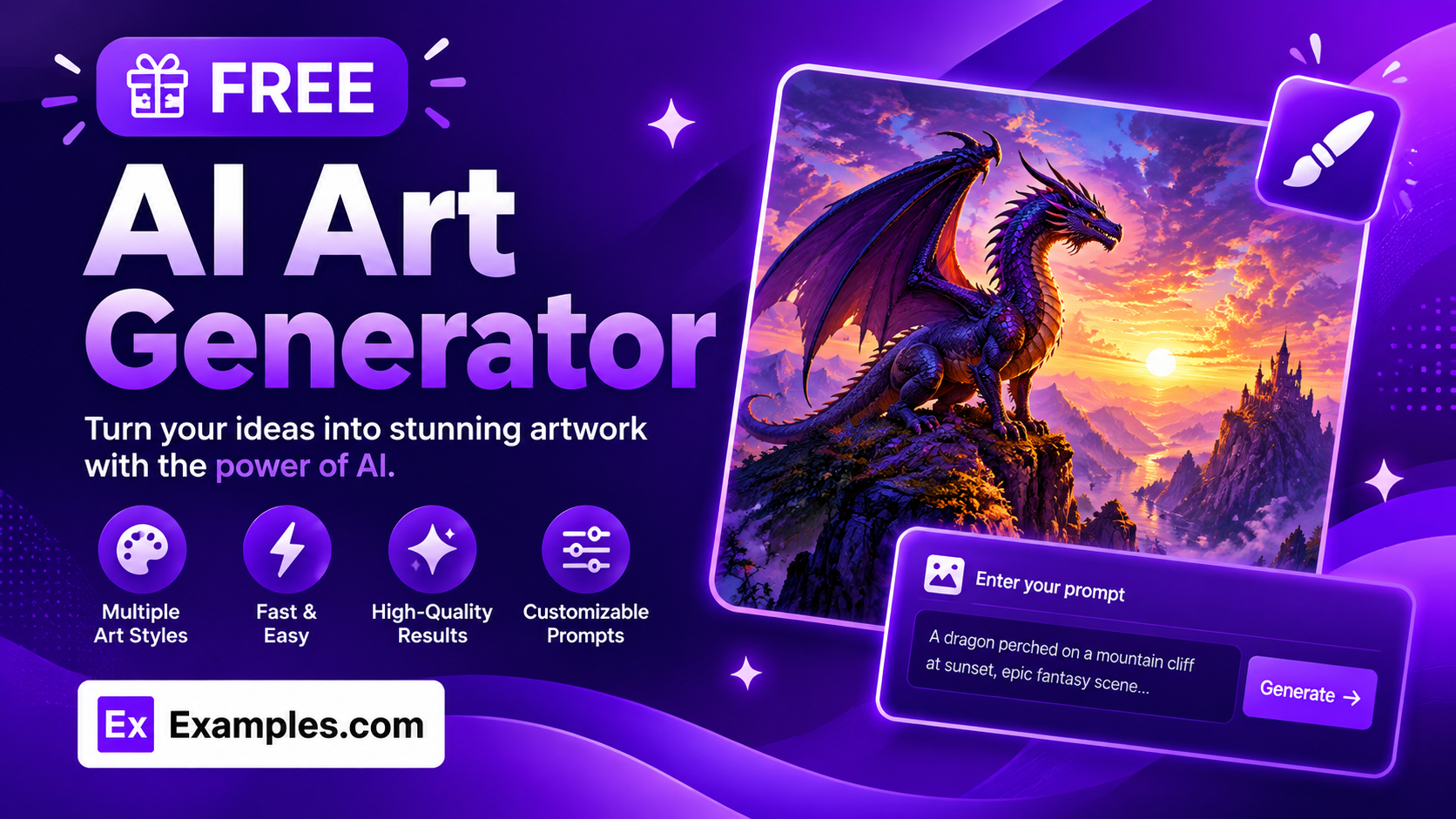
Turn a simple description into finished artwork with the Examples.com AI Art Generator. Describe what you want to see, choose an art style and aspect ratio, and optionally upload a reference image — the AI generates original artwork you can download instantly as a PNG, JPG, or WEBP.
How to Use the AI Art Generator
Step 1: Upload a Reference Image (Optional)
- Upload a Reference Image: Drag and drop an image (PNG, JPG, WEBP, or GIF, up to 5MB) or click to browse files. The AI uses this as a visual reference when generating your artwork, useful for matching a character, pose, color palette, or composition. This step is entirely optional — you can generate art from a text description alone.
Step 2: Describe the Art You Want
- Describe the art you want: Type a description of the scene, subject, or concept you want generated. The more specific your description — lighting, mood, composition, subject details — the closer the final artwork will match your vision. You can also use the microphone icon to dictate your description by voice.
Step 3: Choose an Art Style
- Art Style: Select the visual style for your artwork — Auto, 3D Scene, Anime, Artistic, Cinematic, Digital Art, Educational, Fantasy World, Prototyping & Mockup, Realism, or Pixel Art. Auto is selected by default and lets the AI choose whichever style best fits your description.
Step 4: Set the Aspect Ratio
- Aspect Ratio: Pick the shape of your final artwork — Square (1:1), Landscape (16:9), Portrait (9:16), Standard (4:3), or Portrait Standard (3:4). Square (1:1) is selected by default. Choose Landscape for wallpapers or banners, and Portrait for mobile or story formats.
Step 5: Generate and Download Your Art
- Generate Button: Click the purple “Generate Free Art” button. The AI creates original artwork based on your description, chosen style, and aspect ratio, displayed in the output panel on the right.
- Download: Use the “Download” menu to save your finished artwork as a PNG, JPG, or WEBP file.
AI Art Generator Formula
The AI Art Generator follows a structured input-to-output process to produce artwork that matches your description and creative intent:
Art Quality = Description Detail + Style Consistency + Compositional Fit
Where:
- Description Detail is how specific your typed (or voice-dictated) description is about subject, mood, lighting, and setting, optionally supported by an uploaded reference image
- Style Consistency is the model rendering the artwork according to your chosen Art Style, whether a specific style like Anime or Pixel Art, or an automatically chosen style that best fits the description
- Compositional Fit is how well the generated image matches your chosen Aspect Ratio and follows your description closely, without adding unrelated elements, text, watermarks, or logos
The more specific your description, the closer the generated artwork will match your creative vision.
Examples of AI Art Generator
Example 1: Fantasy Scene for a Book Cover
A writer wants epic cover art for a fantasy novel.
- Description: A lone dragon perched on a mountain cliff at sunset, epic scale, glowing sky, dramatic lighting
- Art Style: Fantasy World
- Aspect Ratio: Portrait Standard (3:4)
- Result: A dramatic, portrait-oriented fantasy illustration with rich lighting and atmosphere, ready to use as cover artwork.
Example 2: Anime Character Portrait
A hobbyist wants a stylized anime portrait for a social media profile.
- Description: A confident young warrior with silver hair and a glowing sword, standing in a moonlit forest
- Art Style: Anime
- Aspect Ratio: Square (1:1)
- Result: A bold, anime-style character portrait with expressive linework and vibrant color, sized perfectly for a profile picture.
Example 3: Product Mockup for a Startup
A founder wants a quick visual to pitch a new app idea.
- Description: A clean mobile app home screen for a fitness tracking app, minimal layout, soft green accents
- Art Style: Prototyping & Mockup
- Aspect Ratio: Portrait (9:16)
- Result: A simple, mobile-shaped UI mockup with a clear layout, useful for pitch decks or early design concepts.
Example 4: Using a Reference Image
A designer wants new artwork that keeps the color palette of an existing image.
- Input: A photo of a sunset uploaded via “Upload a Reference Image”
- Description: A quiet lakeside cabin using the same warm color palette as the reference
- Art Style: Realism
- Aspect Ratio: Landscape (16:9)
- Result: A new, realistic landscape scene that echoes the tones and mood of the uploaded reference image.
Is this AI Art Generator truly free?
Yes. The AI Art Generator is completely free to use, with no hidden charges, sign-up, or subscription required to generate artwork.
What art styles can I choose from?
You can choose from Auto, 3D Scene, Anime, Artistic, Cinematic, Digital Art, Educational, Fantasy World, Prototyping & Mockup, Realism, and Pixel Art. Auto automatically selects whichever style best matches your description, while the other options let you lock in a specific look.
What’s the difference between the aspect ratio options?
Aspect Ratio determines the shape of your generated artwork. Square (1:1) works well for profile pictures and social posts. Landscape (16:9) suits wallpapers, banners, and presentations. Portrait (9:16) is sized for mobile screens and stories. Standard (4:3) and Portrait Standard (3:4) offer traditional print-friendly proportions.
Can I upload an image to guide the generation?
Yes. Use “Upload a Reference Image” to add a PNG, JPG, WEBP, or GIF file up to 5MB. The AI uses it as a visual reference alongside your text description, which is useful for matching a color palette, pose, or composition. This step is optional.
What file formats can I download my artwork in?
Once your artwork is generated, use the “Download” menu to save it as a PNG, JPG, or WEBP file.