
Free AI Smile Generator, Real World Smile Examples
Turn any straight face into a smile with our free AI Smile Generator. Upload your photo, pick a smile style, and download instantly.
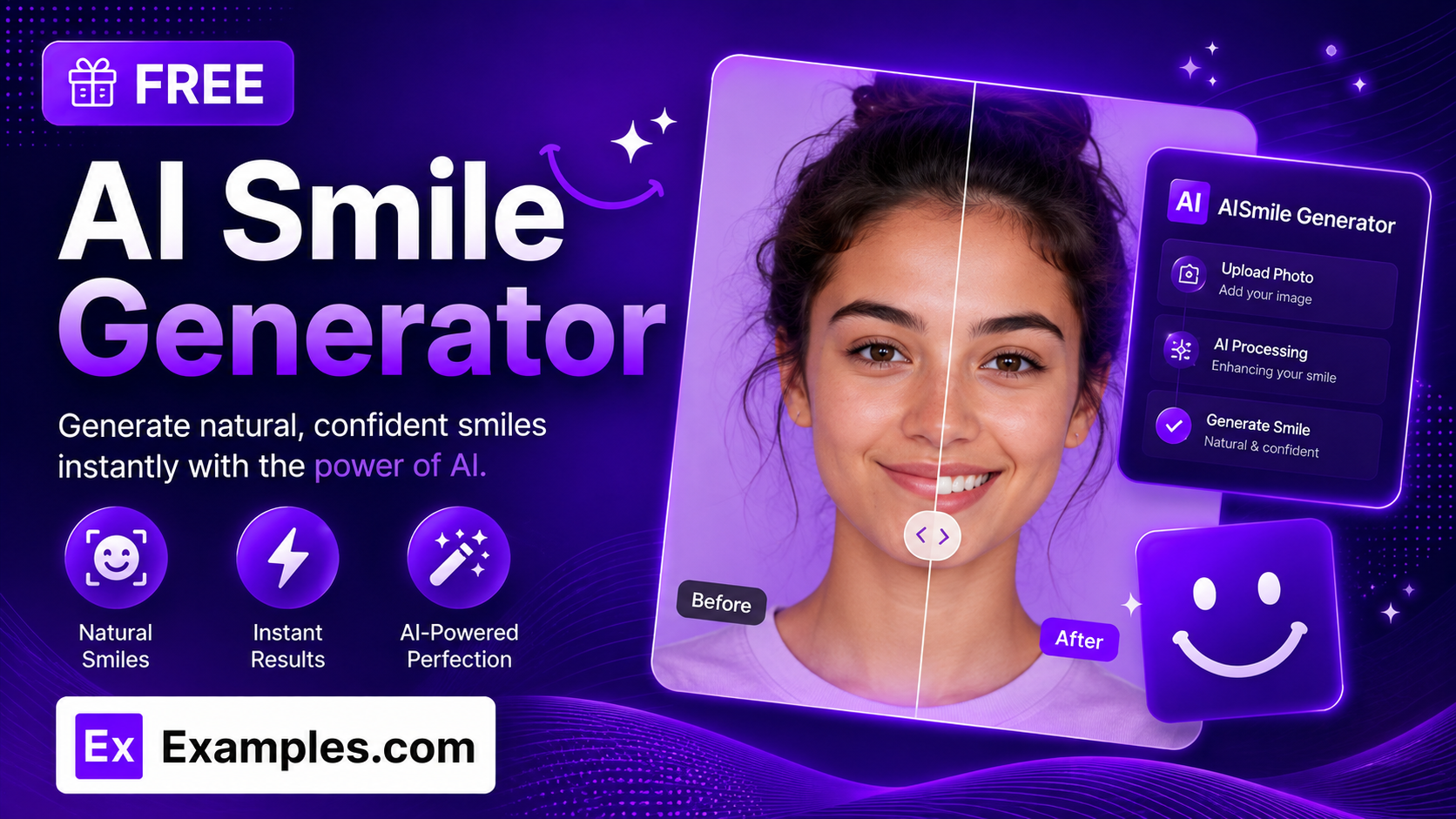
How to use AI Smile Generator
Step 1: Upload Your Photo
- Drag and drop a photo into the upload box or click “browse files.” A photo is required — the tool edits an existing picture rather than generating a new one. Accepted formats are PNG, JPG, WEBP, and GIF, up to 5MB.
Step 2: Add Optional Instructions
- Type any extra guidance in the text box, such as “keep my glasses on” or “don’t change the background.” This field is optional — you can leave it blank and the tool will only adjust the smile.
Step 3: Choose a Smile Intensity
- Select how big the smile should be from the dropdown: Natural Smile, Subtle Smile, Big Smile, Toothy Smile, or Beaming Smile.
Step 4: Choose an Aspect Ratio
- Select the shape of the finished photo: 1:1 (square), 16:9 (landscape), 9:16 (portrait), 4:3 (standard), or 3:4 (portrait standard).
Step 5: Generate the Smile
- Press the “Generate Free Smile” button. The AI edits your photo so the person is smiling, matching your chosen intensity and any instructions you added, while keeping everything else in the photo the same.
Step 6: Download Your Photo
- Once the smiling photo appears, click “Download” and choose PNG, JPG, or WEBP to save it to your device.
How to add a natural smile to a photo
Step 1: Upload Your Photo
- For this example, a portrait photo of a person with a neutral expression is uploaded.
Step 2: Add Optional Instructions
- The instructions are set to “Keep my glasses on and don’t change the background.”
Step 3: Choose a Smile Intensity
- The Smile Intensity is set to Natural Smile.
Step 4: Choose an Aspect Ratio
- The Aspect Ratio is set to 1:1 (square).
Step 5: Generate the Smile
- Clicking “Generate Free Smile” produces the same photo with a relaxed, closed-or-barely-parted smile added, while the glasses, background, and lighting stay unchanged.
Step 6: Download Your Photo
- Clicking “Download” and selecting PNG saves the finished smiling portrait to your device.
Suppose you upload a portrait photo with a neutral expression and enter “Keep my glasses on and don’t change the background,” with Smile Intensity set to Natural Smile and Aspect Ratio set to 1:1.
The AI Smile Generator reads your instructions and edits only the mouth and expression, leaving the glasses, background, lighting, and camera angle untouched.
The result is the same person in the same photo, now with a natural, relaxed smile, matching the description without altering anything else in the frame.
The image can then be downloaded as a PNG, JPG, or WEBP file.
How the AI Smile Generator Works
The AI Smile Generator combines three inputs into a single request: the photo you upload, the Smile Intensity you select, and any optional instructions you add.
The uploaded photo is the starting point — the AI edits it directly instead of generating a new scene from scratch.
The Smile Intensity determines how big the smile is, from a subtle closed-mouth smile to a big, toothy, or beaming smile.
Your optional instructions let you protect specific details, such as glasses, jewelry, or the background, or request a particular look, like showing your teeth.
The Aspect Ratio determines the shape of the finished photo, from the original framing to a square, landscape, or portrait crop.
Throughout the edit, the AI keeps the person’s identity, other facial features, clothing, and background the same — only the mouth and expression change.
Examples of AI-Generated Smiles
- Example 1:
- Photo: A portrait with a neutral expression
- Smile Intensity: Natural Smile
- Aspect Ratio: 1:1 (Square)
- Result: The same portrait with a relaxed, closed-mouth smile, suitable for a profile picture or social media post.
- Example 2:
- Photo: A group photo where one person isn’t smiling
- Smile Intensity: Big Smile
- Instructions: “Don’t change anyone else in the photo”
- Result: The same group photo with a wide, open smile added to the requested person, while everyone else stays as they were.
- Example 3:
- Photo: A professional headshot for a resume or LinkedIn profile
- Smile Intensity: Subtle Smile
- Aspect Ratio: 3:4 (Portrait Standard)
- Result: A polished, professional-looking headshot with a soft, approachable smile.
- Example 4:
- Photo: An old family photo where a relative looks serious
- Smile Intensity: Beaming Smile
- Instructions: “Keep the black-and-white look”
- Result: The same black-and-white photo with a warm, joyful smile added, without introducing color or changing the era-appropriate look.
- Example 5:
- Photo: A close-up portrait with the mouth closed
- Smile Intensity: Toothy Smile
- Instructions: “Show my teeth”
- Result: The same portrait with a full smile showing both rows of teeth, ready to use as a bright, friendly profile photo.
What is an AI smile generator?
An AI smile generator is a tool that edits an existing photo so the person in it appears to be smiling. You upload a photo, choose how big the smile should be, and the AI changes only the mouth and expression while keeping the rest of the photo the same.
Do I need to upload a photo?
Yes. Unlike a text-to-image generator, the AI Smile Generator edits a photo you provide — it doesn’t create a face from scratch. A photo upload is required before you can generate a result.
What smile styles can I choose from?
You can choose from five smile intensities: Natural Smile, Subtle Smile, Big Smile, Toothy Smile, and Beaming Smile.
What aspect ratios are available?
Five aspect ratios are available: 1:1 for a square photo, 16:9 for a wide landscape photo, 9:16 for a tall portrait photo, 4:3 for a standard landscape photo, and 3:4 for a standard portrait photo.
Will the AI change anything else about my photo?
No. The AI Smile Generator is designed to change only the mouth and smile expression. Your identity, other facial features, skin tone, hairstyle, clothing, background, and lighting are kept as close to the original photo as possible unless you specifically ask for a change in the instructions field.
Can I add extra instructions, like keeping my glasses on?
Yes. The optional instructions field lets you add specific requests, such as “keep my glasses on,” “don’t change the background,” or “show my teeth.” Leave it blank if you don’t need any special instructions.
Can I download the photo in different formats?
Yes. Once your smiling photo is generated, you can download it as a PNG, JPG, or WEBP file from the Download menu.
Is the AI Smile Generator free to use?
Yes, the AI Smile Generator is completely free to use, with no sign-up required to generate a smiling photo.
What should I do if the generator gives an error?
Make sure a photo is uploaded before generating, and check that it’s under 5MB and in a supported format (PNG, JPG, WEBP, or GIF). If the problem continues, try a clearer photo with a visible face, or simplify any optional instructions and generate again.
Can I use this on old or black-and-white photos?
Yes. You can upload an older or black-and-white photo and add an instruction like “keep the black-and-white look” so the AI adds a smile without introducing color or changing the original style of the photo.
What if my photo has more than one person?
You can use the optional instructions field to tell the AI which person to focus on, such as “add a smile to the person on the left” or “don’t change anyone else in the photo,” so only the intended person’s expression is edited.