
Free AI Executive Summary Generator, Real World Executive Summary Examples
Turn any report, proposal, or document into a clear executive summary in seconds. Free AI tool with Overview, Key Highlights & Recommendations.
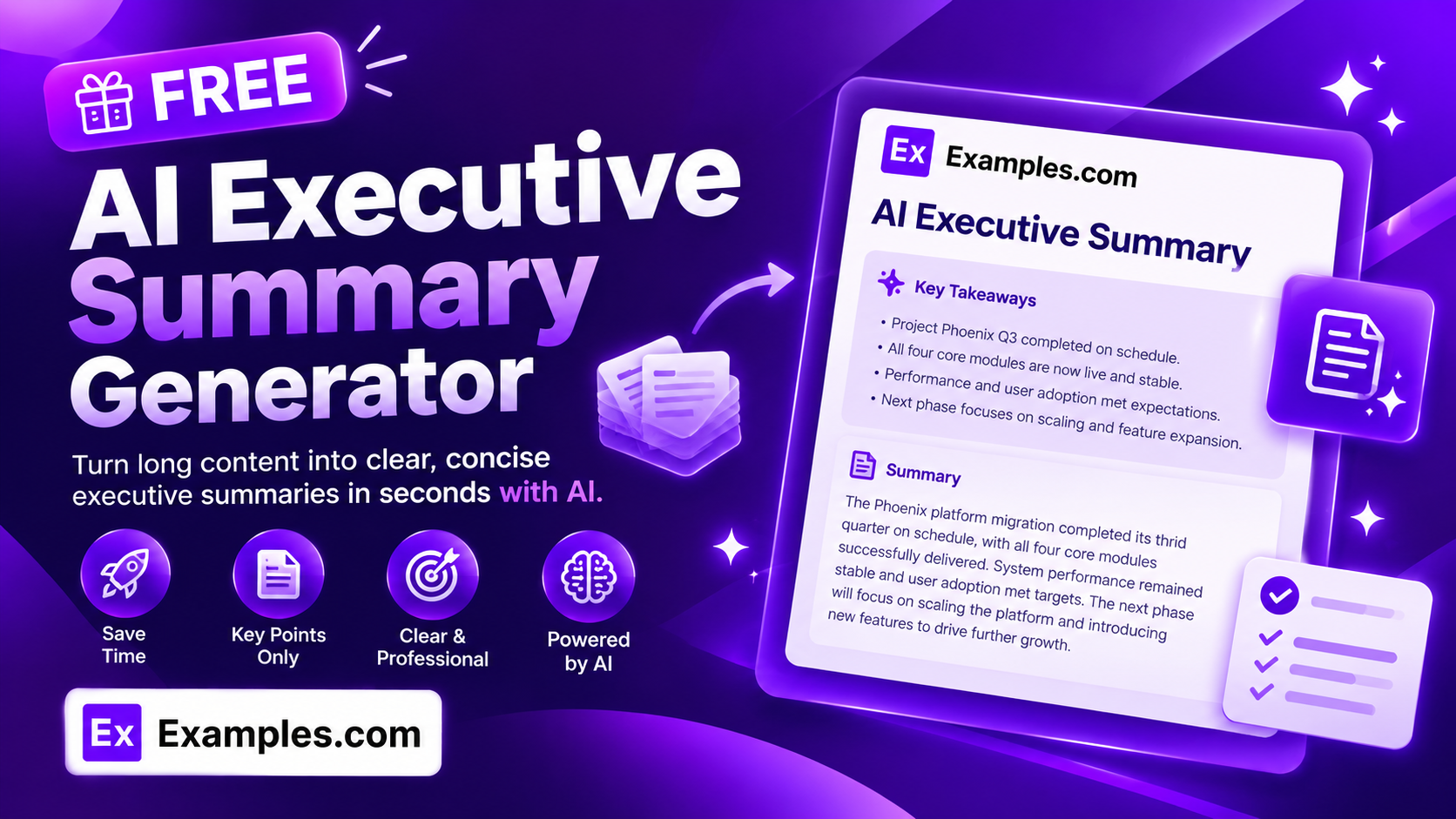
Turn any report, proposal, or set of notes into a clear, decision-ready summary with the Examples.com AI Executive Summary Generator. Paste your document or upload a file, choose the document type, tone, length, language, and audience, and get a scannable summary — from a single overview paragraph up to a full Overview, Key Highlights, and Recommendations breakdown — built only from what’s actually in your source text.
How to Use the AI Executive Summary Generator
Step 1: Paste Your Document
- Paste your report, proposal, or document: Paste the text you want summarized into the main text field — a business report, project proposal, research findings, meeting notes, or any other long document. This is the only required field. The more complete the source text, the more accurate and useful the generated summary will be.
Step 2: Choose a Document Type
- Document Type: Select what kind of document you’re summarizing — Business Report, Project Proposal, Research Report, Financial Report, Marketing Plan, Strategic Plan, Meeting Minutes, Product Launch Plan, Annual Report, or All Document Types. All Document Types is selected by default and lets the AI frame the summary generically; choosing a specific type helps the AI frame the summary the way readers of that document type expect.
Step 3: Set the Tone
- Tone: Choose how the summary should read — Formal & Professional, Neutral & Balanced, Persuasive & Confident, Concise & Direct, or Simplified & Easy-to-Read. Formal & Professional is selected by default, matching how most executive summaries are expected to sound.
Step 4: Pick a Summary Length
- Summary Length: Choose Short, Medium, or Long. Medium is selected by default. Short returns a single overview paragraph. Medium adds an Overview section plus a Key Highlights bullet list. Long keeps both of those and adds a Recommendations / Next Steps section, built only from action items your source text actually supports.
Step 5: Select a Language
- Language: Choose the output language for your summary from twelve options, including English, Spanish, French, German, Portuguese, Italian, Hindi, Arabic, Chinese (Simplified), Japanese, Korean, and Russian. English is selected by default.
Step 6: Choose Who It’s Best For
- Best For: Select the intended audience — Executives & C-Suite, Board Members, Investors & Stakeholders, Team & Department Heads, Clients & Partners, or General Business Readers. Executives & C-Suite is selected by default. This shapes the vocabulary and framing of the summary to match how that audience expects to read it.
Step 7: Upload a File (Optional)
- Upload File to Summarize: Optionally upload a .txt, .md, .pdf, .doc, .docx, .odt, or .html file (up to 2MB). The extracted text is automatically added to the text field, so you can summarize a longer report or document instead of pasting it manually.
Step 8: Generate, Edit, and Download Your Summary
- Generate Button: Click the purple “Generate Free Executive Summary” button. The AI produces a summary structured to match your chosen Summary Length, written in your chosen tone and language, and framed for your chosen Document Type and audience — using only information present in your source text.
- Edit: Click “Edit” to fine-tune the wording of any section directly in the output panel before exporting.
- Copy / Download: Use “Copy All” to copy the full summary to your clipboard, or use the “Download” menu to save it as a TXT, Word, or PDF file.
AI Executive Summary Generator Formula
The AI Executive Summary Generator follows a structured input-to-output process to produce summaries that are accurate, scannable, and genuinely useful to decision-makers:
Summary Quality = Source Fidelity + Structural Depth + Audience Fit
Where:
- Source Fidelity is the AI only summarizing information actually present in your pasted text or uploaded document, never inventing facts, figures, or recommendations your source doesn’t support
- Structural Depth is how much section structure the summary includes, scaling with your chosen Summary Length — Short stays a single overview paragraph, Medium adds a Key Highlights section, Long adds a further Recommendations / Next Steps section
- Audience Fit is how closely the vocabulary, tone, and framing match your chosen Best For audience and Document Type, so a summary for Board Members reads differently than one for Team & Department Heads even from the same source text
The more complete your source text, the more accurate and genuinely useful the generated summary will be.
Examples of AI Executive Summary Generator
Example 1: A Business Report for Executives & C-Suite
An operations lead needs a quick summary of a quarterly project report for leadership.
- Document Type: Business Report
- Tone: Formal & Professional
- Summary Length: Medium
- Best For: Executives & C-Suite
- Result: An Overview paragraph covering the project’s status and budget performance, followed by a Key Highlights section listing the quarter’s main outcomes and open risks.
Example 2: A Project Proposal for Board Members
A department head wants board members to quickly grasp a new proposal’s scope and ask.
- Document Type: Project Proposal
- Tone: Persuasive & Confident
- Summary Length: Long
- Best For: Board Members
- Result: A full Overview, Key Highlights, and Recommendations / Next Steps summary, ending with the specific approval or funding decision the proposal is asking the board to make.
Example 3: Meeting Minutes for Team & Department Heads
A project manager needs a short recap of a planning meeting to circulate to team leads.
- Document Type: Meeting Minutes
- Tone: Concise & Direct
- Summary Length: Short
- Best For: Team & Department Heads
- Result: A single tight paragraph capturing what was decided and what’s next, ready to paste directly into a follow-up email.
Example 4: A Financial Report for Investors & Stakeholders
A finance team wants to distill a detailed financial report before sending it to investors.
- Document Type: Financial Report
- Tone: Neutral & Balanced
- Summary Length: Medium
- Best For: Investors & Stakeholders
- Result: An Overview of overall financial performance, followed by Key Highlights covering the specific figures and trends the report actually reports — with no projections or claims beyond what’s in the source.
Example 5: File Upload
An operations manager uploads a full annual report instead of pasting it manually.
- Input: A .pdf annual report uploaded via “Upload File to Summarize”
- Document Type: Annual Report
- Tone: Formal & Professional
- Best For: General Business Readers
- Result: The tool extracts the text from the uploaded PDF, then generates a summary grounded only in what was actually reported in the document, ready to review, edit, and download.
Is this AI Executive Summary Generator truly free?
Yes. The AI Executive Summary Generator is completely free to use, with no hidden charges, sign-up, or subscription required to generate a summary.
Is the summary based only on my document, or does the AI add outside information?
The tool is instructed to summarize only information actually present in your pasted text or uploaded document, and never to add facts, figures, or recommendations that aren’t supported by your source. That said, it’s still AI-generated content, so for high-stakes or published documents, it’s a good idea to review the summary against the original before relying on it.
What’s the difference between the Summary Length options?
Summary Length controls how much structure the output includes. Short returns a single overview paragraph with no headings or lists. Medium adds an Overview section plus a Key Highlights bullet list. Long keeps both of those and adds a Recommendations / Next Steps section, built only from action items your source text actually supports.
Which Document Type should I choose?
Document Type tells the AI how to frame the summary. Business Report, Financial Report, and Annual Report suit performance-style documents. Project Proposal and Strategic Plan suit forward-looking asks. Meeting Minutes suits short recaps. If none quite fit, All Document Types lets the AI frame the summary generically based on the content itself.
Which Best For option should I pick?
Best For shapes the vocabulary and framing of the summary. Executives & C-Suite and Board Members suit high-level, decision-focused summaries. Investors & Stakeholders suits performance and outcome-focused framing. Team & Department Heads and Clients & Partners suit more operational or relationship-focused framing. General Business Readers is a safe, adaptable default.
Can I upload a file instead of pasting my document?
Yes. Use the “Upload File to Summarize” field to upload a .txt, .md, .pdf, .doc, .docx, .odt, or .html file up to 2MB. The extracted text is added directly to the text field, so you can summarize an existing report or document instead of retyping it.
Can I edit the generated summary afterward?
Yes. Click “Edit” to make changes directly in the output panel, then use “Copy All” to copy the finished summary to your clipboard, or download it as a TXT, Word, or PDF file so you can save and reuse it elsewhere.