
Free AI Old Photo Restoration, Real World Photo Examples
Restore any old, damaged photo in seconds with our Free AI Old Photo Restoration tool.
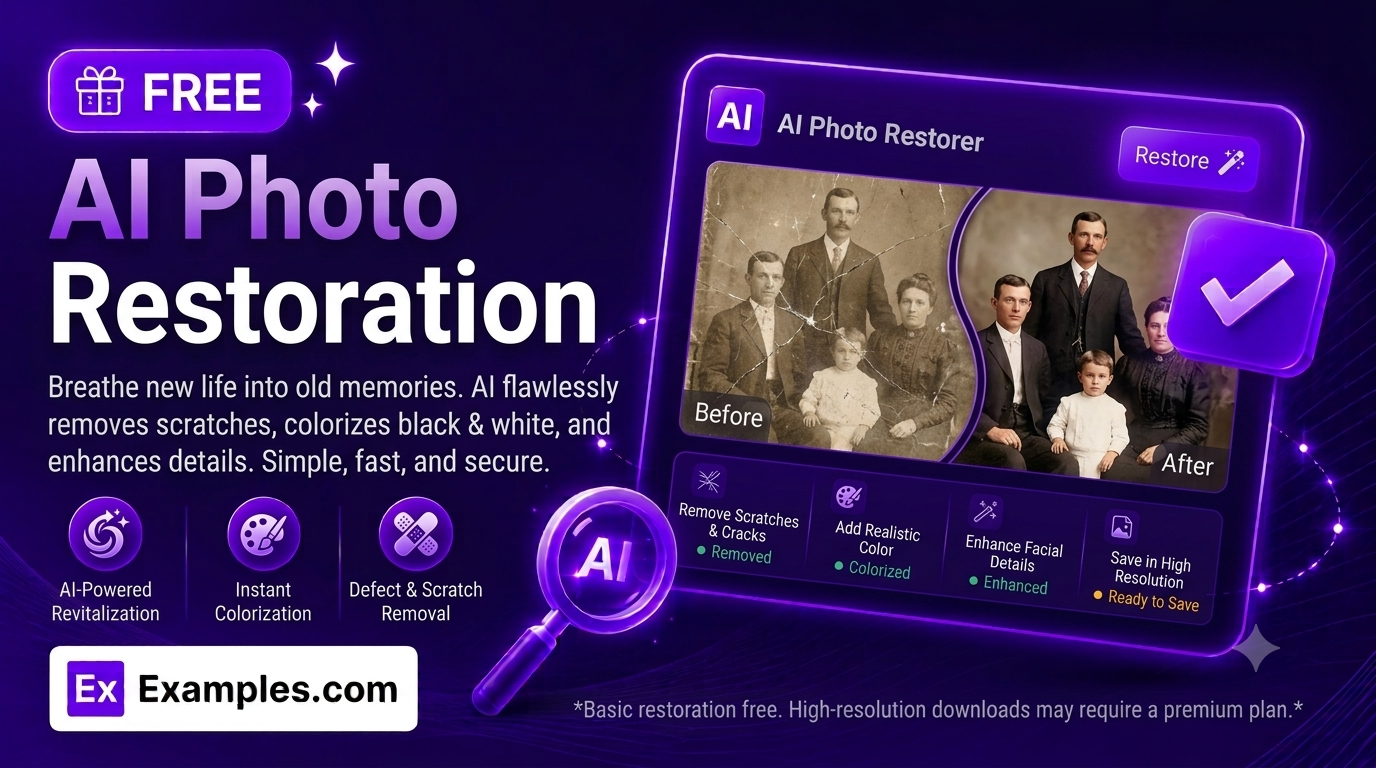
How to use AI Old Photo Restoration
Step 1: Upload the Old Photo You Want to Restore
- Drag and drop the photo into the upload box or click “browse files.” This step is required — the tool restores a photo you provide rather than generating one from scratch. Accepted formats are PNG, JPG, WEBP, and GIF, up to 5MB.
Step 2: Describe the Restoration You Want (Optional)
- If you want to point out specific damage, type it in the text box (e.g., “remove the scratches and fix the torn corners” or “colorize this black and white photo”). This field is optional — Full Restoration (Auto) works without any description.
Step 3: Choose a Restoration Type
- Select the kind of restoration you need: Full Auto, Scratches, Fading, Tears, Colorize, or Sharpen.
Step 4: Choose an Aspect Ratio
- Select the shape of the finished image: 1:1 (square), 16:9 (landscape), 9:16 (portrait), 4:3 (standard), or 3:4 (portrait standard).
Step 5: Restore the Photo
- Press the “Restore Photo” button. The AI repairs the damage while keeping the people, objects, and scenery in the photo exactly as they were.
Step 6: Download Your Restored Photo
- Once the restored photo appears, click “Download” and choose PNG, JPG, or WEBP to save it to your device.
How to restore a scratched and torn photo
Step 1: Upload the Old Photo You Want to Restore
- An old, faded photo with visible scratches and torn corners is uploaded into the upload box.
Step 2: Describe the Restoration You Want (Optional)
- The description is set to “Remove the scratches and fix the torn corners.”
Step 3: Choose a Restoration Type
- The Restoration Type is set to Full Auto.
Step 4: Choose an Aspect Ratio
- The Aspect Ratio is set to 1:1 (Square).
Step 5: Restore the Photo
- Clicking “Restore Photo” produces the same scene with the scratches removed, the torn corners repaired, and the faded color corrected.
Step 6: Download Your Restored Photo
- Clicking “Download” and selecting PNG saves the finished, restored photo to your device.
Suppose you upload an old, faded photo with visible scratches and torn corners, and enter “Remove the scratches and fix the torn corners,” with Restoration Type set to Full Auto and Aspect Ratio set to 1:1.
The AI Old Photo Restoration tool identifies the visible damage — scratches, tears, and fading — and repairs it.
The people, objects, and scenery in the photo stay exactly as they were; only the damage is removed and the color and clarity are restored.
The result can then be downloaded as a PNG, JPG, or WEBP file.
How the AI Old Photo Restoration Works
The AI Old Photo Restoration tool edits a photo you upload rather than generating a new one from scratch.
The Restoration Type you select tells the AI what kind of damage to focus on — Full Auto repairs everything it detects, while Scratches, Fading, Tears, Colorize, and Sharpen each target a specific type of repair.
The tool is instructed to keep the people, objects, scenery, and composition in the photo exactly the same, including facial likeness, and to change only the damage and quality issues described.
The optional description field lets you point out specific damage, like a particular tear or area of fading, for a more targeted result.
The Aspect Ratio you select determines the shape of the final output canvas.
Benefits of the AI Old Photo Restoration
- Six restoration types in one tool: handle scratches, fading, tears, black-and-white colorization, and sharpening, or let Full Auto repair everything at once.
- Likeness preserved: the AI is instructed to keep people’s faces, poses, and every other detail in the photo unchanged, repairing only the damage.
- No design skills needed: restore a family photo without opening any photo editing software.
- Colorization included: bring an old black-and-white photo to life with realistic, natural color.
- Aspect ratio control: output your restored photo as a square, landscape, portrait, or standard frame to fit where you plan to use it.
- Free and browser-based: use the tool from any device with a browser, with no sign-up required.
Common Use Cases for Restoring an Old Photo
1. Bring a family heirloom photo back to life
Old family portraits often carry scratches, creases, and fading after decades in storage. Full Auto restoration can clean up years of wear so the photo is easier to display or share.
2. Colorize a black-and-white photo
Add realistic color to an old black-and-white photo to see a relative or historical scene in a new light, using the Colorize option.
3. Repair a torn or damaged print before scanning it for keepsakes
If a physical print has a torn corner or missing piece, the Tears option can reconstruct the missing area so the digital copy looks complete.
4. Fix sun-faded or yellowed photos
Photos stored in sunlight or humidity often fade or yellow over time. The Fading option restores more natural, balanced color and contrast.
5. Sharpen a soft or blurry scan
Scanned prints can come out soft or low on detail. The Sharpen option enhances clarity without changing the photo’s content.
Tips for the Best Restoration Results
- Upload the highest-resolution scan or photo of the original you have, so the restored version has more detail to work with.
- Use the description field to point out specific damage, like a tear in one corner, if the photo has several types of damage at once.
- Choose the specific Restoration Type that matches the main issue (Scratches, Fading, Tears) for a more targeted result than Full Auto alone.
- If a photo needs more than one kind of repair, run it through the tool once with Full Auto, then again with a specific type if any damage remains.
- Keep a copy of the original photo safe, since a scanned or photographed copy is easier to restore digitally than a damaged physical print.
Examples of Photo Restoration
- Example 1:
- Restoration Type: Full Auto
- Description: Remove the scratches and fix the torn corners
- Aspect Ratio: 1:1 (Square)
- Result: A clean, sharp photo with scratches, tears, and fading all repaired at once.
- Example 2:
- Restoration Type: Colorize
- Description: None
- Aspect Ratio: 4:3 (Standard)
- Result: A black-and-white photo brought to life with natural, realistic color.
- Example 3:
- Restoration Type: Fading
- Description: None
- Aspect Ratio: 4:3 (Standard)
- Result: A yellowed, sun-faded photo with its natural color and contrast restored.
- Example 4:
- Restoration Type: Tears
- Description: None
- Aspect Ratio: 16:9 (Landscape)
- Result: A wide photo with a torn or missing section reconstructed to match its surroundings.
Do I need to upload a photo?
Yes. This tool restores a photo you provide, so uploading an image is required before you can generate a result.
Do I need to type a description?
No. The description field is optional. Full Restoration (Auto) works without any text — the description is most useful when you want to point out specific damage or request colorization.
Will the people in my photo look different afterward?
The generator is instructed to keep every person’s face, pose, and likeness exactly the same, along with all other subjects and scenery in the photo. Only visible damage and quality issues are repaired.
Can this tool colorize black-and-white photos?
Yes. Select the Colorize option to add natural, realistic color to a black-and-white photo based on its content.
What image formats can I upload?
You can upload PNG, JPG, WEBP, or GIF files, up to 5MB in size.
Can I describe the damage by speaking instead of typing?
Yes. The description field includes a voice input button. Click it, describe the damage out loud, and your words are added to the text box automatically.
Can I download the photo in different formats?
Yes. Once your photo is restored, you can download it as a PNG, JPG, or WEBP file from the Download menu.
Is the AI Old Photo Restoration free to use?
Yes, the AI Old Photo Restoration tool is completely free to use, with no sign-up required.
What should I do if the generator gives an error?
Make sure you’ve uploaded a photo before generating, and check that it’s under 5MB and in a supported format (PNG, JPG, WEBP, or GIF). If the problem continues, try a different Restoration Type or add a short description of the damage and generate again.