
Free AI Image to Text Generator, Real World Examples
Generate free AI text from images instantly. Upload a photo or screenshot, pick a format, and get clean text ready to copy or download.
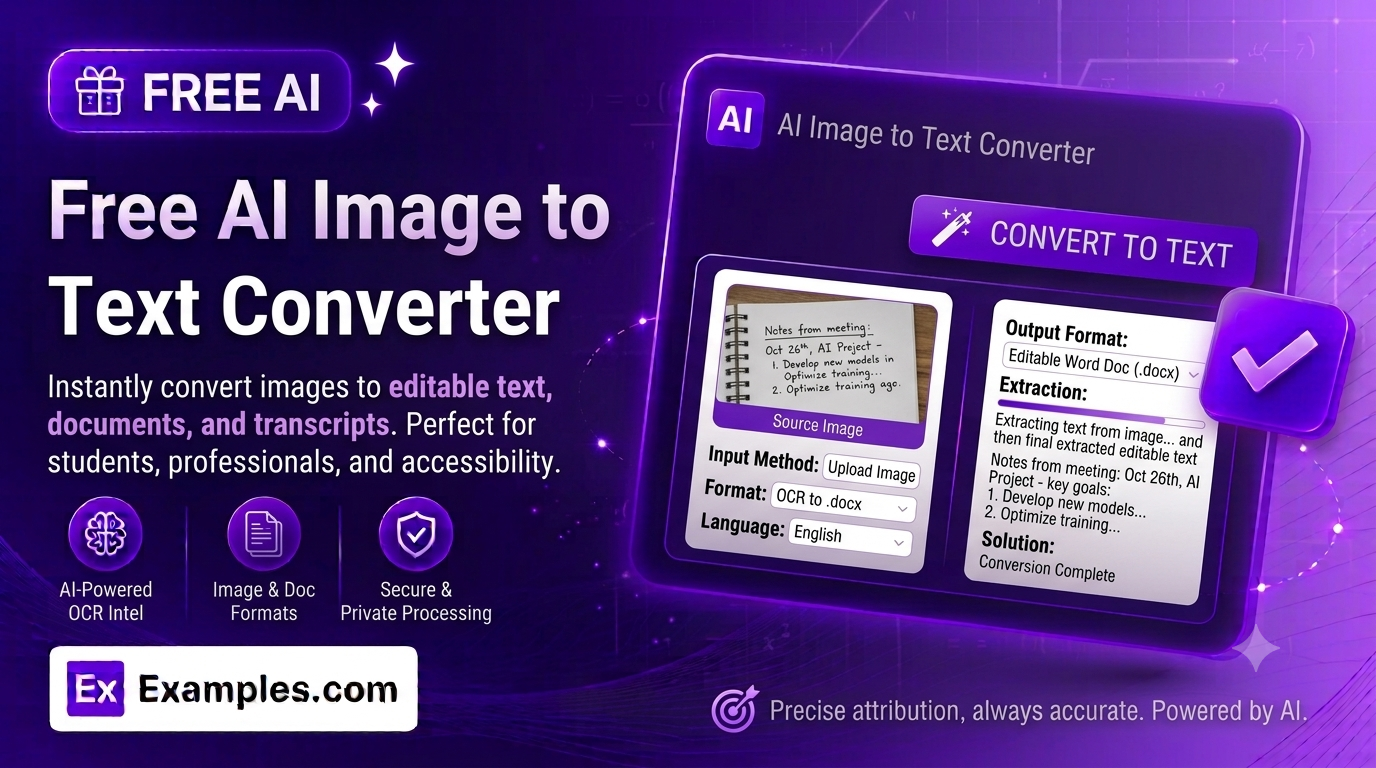
Turn any image into clean, usable text with the Examples.com AI Image to Text Generator. Upload a photo, screenshot, or scanned document, choose how you want the text formatted, and let AI read and transcribe it for you — no typing required.
How to Use the AI Image to Text Generator
Step 1: Upload Your Image
- Upload a Reference Image: Drag and drop or browse for a photo, screenshot, or scanned document (JPG, PNG, GIF, WEBP, or BMP, up to 8MB). This is required — the tool reads the text directly from your image.
Step 2: Add Any Additional Notes (Optional)
- Enter or paste additional text: Optionally add notes or context to supplement what’s in the image — for example, clarifying an ambiguous word or adding related information. You can type this in directly or use the voice input button to dictate it.
Step 3: Choose a Text Format
- Text Format: Select Plain Text (As Extracted), Cleaned & Corrected, Structured / Formatted, or Bullet Point Summary, right from the pill selector inside the text box. Plain Text (As Extracted) is selected by default.
Step 4: Generate Your Text
- Generate Button: Click the purple “Generate Free Text” button. The AI reads every piece of text visible in your image and returns it in the format you chose.
Step 5: Edit, Copy, or Download Your Result
- Edit: Click “Edit” to make changes directly to the result before copying or downloading.
- Copy All: Copies the text to your clipboard as plain text.
- Download: Save the result as a TXT, Word, or PDF file.
AI Image to Text Generator Formula
The AI Image to Text Generator follows a structured input-to-output process to produce a transcription that’s both accurate and correctly shaped:
Text Extraction Quality = Image Clarity + Format Fit + Faithfulness to Source
Where:
- Image Clarity is how legible the text in your photo or scan is — sharper, well-lit images with readable fonts or handwriting produce more accurate results
- Format Fit is whether the output matches the structure you asked for, since a faithful transcription looks very different from a bulleted summary
- Faithfulness to Source is whether every word in the result is actually grounded in what’s visible in the image (and any notes you added), with nothing invented to fill in illegible or unclear sections
The clearer your image, the more accurate the generated text will be.
Examples of AI Image to Text Generator
Example 1: Transcribing a Screenshot
Someone wants to copy text from a screenshot they can’t select directly.
- Image: A screenshot of an article or chat message.
- Text Format: Plain Text (As Extracted)
- Result: A faithful transcription of exactly what’s on screen, ready to copy and paste elsewhere.
Example 2: Reading a Photographed Receipt
Someone needs a clean, typo-free version of a receipt photo for expense tracking.
- Image: A phone photo of a store receipt.
- Text Format: Cleaned & Corrected
- Result: The receipt’s text with spacing and minor recognition errors cleaned up, while keeping every line item and total intact.
Example 3: Digitizing a Scanned Document
A student wants a scanned handout turned into a readable, well-organized document.
- Image: A scanned page with headings and paragraphs.
- Text Format: Structured / Formatted
- Result: The same content reorganized into clear paragraphs, with headings and lists reconstructed where the original layout implies them.
Example 4: Summarizing a Photo of a Long Notice
Someone wants just the key points from a dense notice or flyer.
- Image: A photo of a bulletin board notice.
- Text Format: Bullet Point Summary
- Result: A bulleted list of the notice’s key points, one per bullet.
Does this tool use traditional OCR software?
No — it uses an AI vision model that reads the text directly from your image, rather than a separate OCR engine. This means it can often handle messier handwriting, unusual layouts, and lower-quality photos better than traditional OCR, while also applying your chosen format in the same step.
What’s the difference between the text formats?
Plain Text (As Extracted) stays as close to the original wording and layout as possible. Cleaned & Corrected fixes recognition errors and typos without changing the meaning. Structured / Formatted reorganizes the content into clearer paragraphs, lists, or headings. Bullet Point Summary condenses everything into a short list of key points.
Can I add extra notes alongside the image?
Yes. The optional text field lets you add context or clarifying notes — for example, spelling out an abbreviation or naming something the image doesn’t make clear — which the AI will incorporate alongside what it reads from the image.
Can I use voice input instead of typing?
Yes. Click the microphone icon next to the text field to dictate your additional notes instead of typing them, in browsers that support voice input.
What image formats are supported?
JPG, PNG, GIF, WEBP, and BMP files up to 8MB.
Can I edit the generated text afterward?
Yes. Click “Edit” to make changes directly to the result, then use “Copy All” to copy it to your clipboard, or “Download” to save it as a TXT, Word, or PDF file.
Related Tools
- AI Summarizer — Summarize the text once it’s extracted.
- AI Content Generator — Generate full articles, descriptions, and more from a single topic.
- AI Sentence Rewriter — Rework a plain sentence using stronger vocabulary.
- AI Response Generator — Draft a reply to a message or review.