
Free AI Out Of Office Message Generator
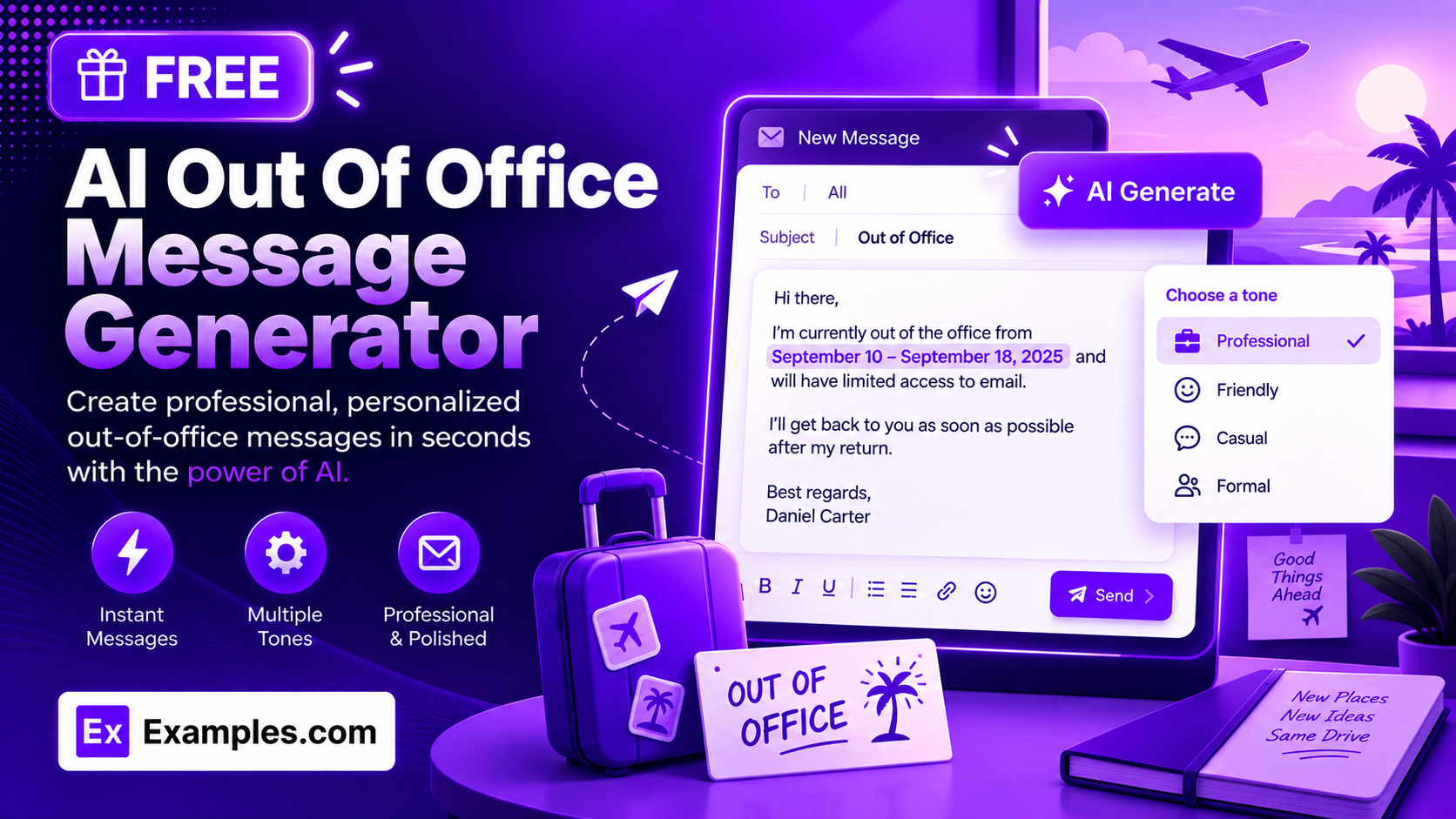
Write a professional out-of-office reply in seconds with the Examples.com AI Out of Office Message Generator. Describe your situation, pick your reason for absence, tone, and dates, and get a ready-to-use auto-reply email — complete with your away dates and alternate contact included automatically.
How to Use the AI Out of Office Message Generator
Step 1: Describe Your Situation
- Describe your situation: Type a short description of why you’re out of office into the main text field — for example, “Taking a two-week vacation, checking email occasionally.” You can also paste an existing out-of-office template you’d like refreshed or rewritten. The more detail you give, the more natural and accurate the generated message will be.
Step 2: Upload an Existing Message (Optional)
- Upload Existing Message or Template: Optionally upload a .txt, .md, .pdf, .doc, .docx, .odt, or .html file (up to 2MB) containing a message you already use. The extracted text is added automatically to the situation field, so the AI can refine or update it instead of you retyping it from scratch.
Step 3: Choose Your Reason for Absence
- Reason for Absence: Select the category that fits your situation — Vacation, Sick Leave, Personal Leave, Conference / Business Travel, Parental Leave, Holiday / Office Closure, Extended Leave, or General / Other. Vacation is selected by default. This shapes how much (or how little) detail the message includes — a Sick Leave message stays brief, while a Vacation message can be warmer.
Step 4: Set the Tone
- Tone: Choose how the message should sound — Professional, Friendly, Casual, Formal, or Humorous. Professional is selected by default.
Step 5: Pick a Language
- Language: Select the language the entire message, including its title, should be written in — English, Spanish, French, German, Portuguese, Italian, Dutch, Japanese, Chinese (Simplified), Hindi, Arabic, or Russian. English is selected by default.
Step 6: Add Your Dates
- Away From / Returning On: Enter the date you’ll be out of office and the date you’re back. These are required fields, and the exact dates you enter are always stated in the generated message — the AI never changes or invents different dates.
Step 7: Add an Alternate Contact (Optional)
- Alternate Contact: Optionally enter a name and contact detail for urgent matters, such as “Jane Doe, jane@company.com.” If you leave this blank, the message simply states that you’ll respond upon your return, without inventing a contact.
Step 8: Generate, Edit, and Download Your Message
- Generate Button: Click the purple “Generate Free Message” button. The AI writes a complete out-of-office auto-reply — a short title plus 3-6 sentences — in your chosen tone and language, stating your dates and alternate contact exactly as entered.
- Edit: Click “Edit” to fine-tune the wording directly in the output panel before exporting.
- Copy / Download: Use “Copy All” to copy the message to your clipboard, or use the “Download” menu to save it as a TXT, Word, or PDF file, ready to paste into your email auto-responder.
AI Out of Office Message Generator Formula
The AI Out of Office Message Generator follows a structured input-to-output process to produce a message that’s accurate, appropriately toned, and ready to use:
Message Quality = Situation Accuracy + Tone Match + Detail Fidelity
Where:
- Situation Accuracy is how clearly your reason for absence, dates, and situation description are captured, either typed in directly or extracted from an uploaded file
- Tone Match is the model matching your chosen Tone and Reason for Absence throughout the writing, so a Sick Leave message stays brief and a Vacation message can read warmer
- Detail Fidelity is the model never inventing dates, contact names, company policies, or commitments that weren’t actually provided, and always stating the dates and alternate contact exactly as entered
The more specific your situation description and details, the more accurate and natural-sounding the generated message will be.
Examples of AI Out of Office Message Generator
Example 1: A Two-Week Vacation
An employee wants a warm, professional reply for a two-week vacation.
- Situation: Taking a two-week vacation, checking email occasionally
- Reason for Absence: Vacation
- Tone: Professional
- Language: English
- Result: A titled message thanking the sender, stating the exact away and return dates, and directing urgent matters to the named alternate contact.
Example 2: A Brief Sick Leave Notice
An employee needs a short, discreet message without oversharing personal details.
- Situation: Out unexpectedly, back early next week
- Reason for Absence: Sick Leave
- Tone: Formal
- Language: English
- Result: A brief, matter-of-fact message stating the return date without going into personal detail about the absence.
Example 3: A Conference Trip in Another Language
A business traveler wants a Spanish-language reply for a work conference.
- Situation: Attending an industry conference, limited email access
- Reason for Absence: Conference / Business Travel
- Tone: Professional
- Language: Spanish
- Result: A complete auto-reply written entirely in Spanish, with the dates and alternate contact stated exactly as entered.
Example 4: An Office-Wide Holiday Closure
A team wants a general notice rather than a personal message.
- Situation: Office closed for the holidays, reopening in the new year
- Reason for Absence: Holiday / Office Closure
- Tone: Friendly
- Language: English
- Result: A general-notice-style message that reads as company-wide rather than personal, with the reopening date clearly stated.
Example 5: Updating an Existing Template
An employee uploads an old out-of-office template instead of writing a new one.
- Input: A .docx file containing a previous out-of-office message, uploaded via “Upload Existing Message or Template”
- Reason for Absence: Parental Leave
- Tone: Friendly
- Language: English
- Result: The tool extracts the existing message text, then rewrites it with the updated dates, tone, and alternate contact supplied in the form.
Is this AI Out of Office Message Generator truly free?
Yes. The AI Out of Office Message Generator is completely free to use, with no hidden charges, sign-up, or subscription required to generate a message.
Will the message always include my exact dates and contact details?
Yes. The dates you enter in “Away From” and “Returning On” are always stated exactly as given, and the tool never invents or changes them. If you provide an alternate contact, their name and details are included exactly as entered; if you leave it blank, no contact is invented.
What’s the difference between the Reason for Absence options?
Reason for Absence shapes how much detail and what phrasing the message uses. Vacation and Parental Leave can read warmer and more personal. Sick Leave and Personal Leave stay brief and avoid oversharing. Conference / Business Travel and Extended Leave note limited availability. Holiday / Office Closure reads as a general company-wide notice rather than a personal message. General / Other is a flexible catch-all for anything that doesn’t fit the other categories.
Which tone should I choose?
The tone setting shapes the voice of the message. Formal suits corporate or client-facing inboxes. Professional is a safe, adaptable default for most workplaces. Friendly and Casual work well for close-knit teams or informal industries. Humorous adds personality but is best reserved for internal or low-stakes accounts.
Can I generate the message in a language other than English?
Yes. Use the “Language” dropdown to choose from English, Spanish, French, German, Portuguese, Italian, Dutch, Japanese, Chinese (Simplified), Hindi, Arabic, or Russian. The entire message, including its title, is written in the selected language.
Can I upload an existing out-of-office message instead of starting from scratch?
Yes. Use the “Upload Existing Message or Template” field to upload a .txt, .md, .pdf, .doc, .docx, .odt, or .html file up to 2MB. The extracted text is added directly to the situation field, so the AI can refine or update your existing message instead of you retyping it.
Can I edit the generated message afterward?
Yes. Click “Edit” to make changes directly in the output panel, then use “Copy All” to copy the finished message to your clipboard, or download it as a TXT, Word, or PDF file so you can paste it straight into your email auto-responder.